

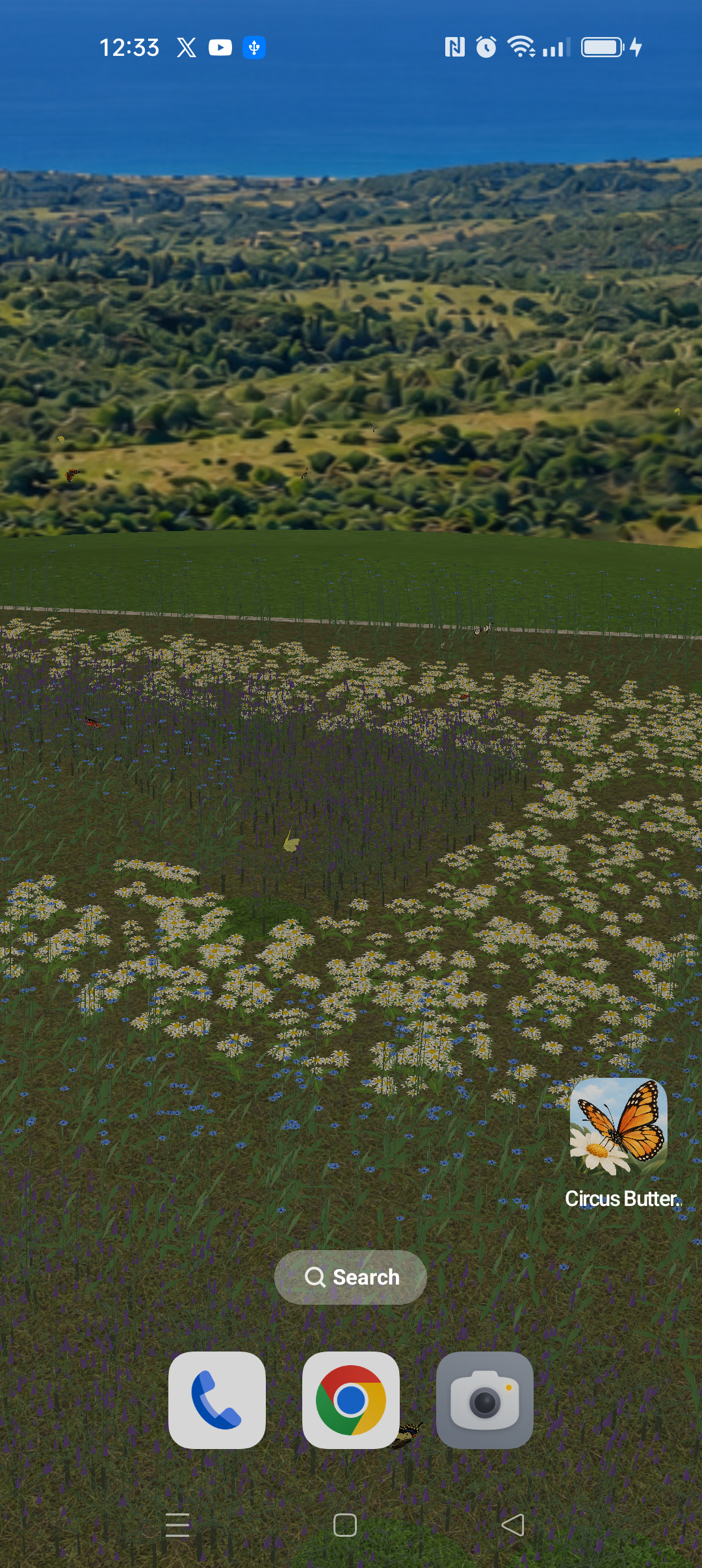
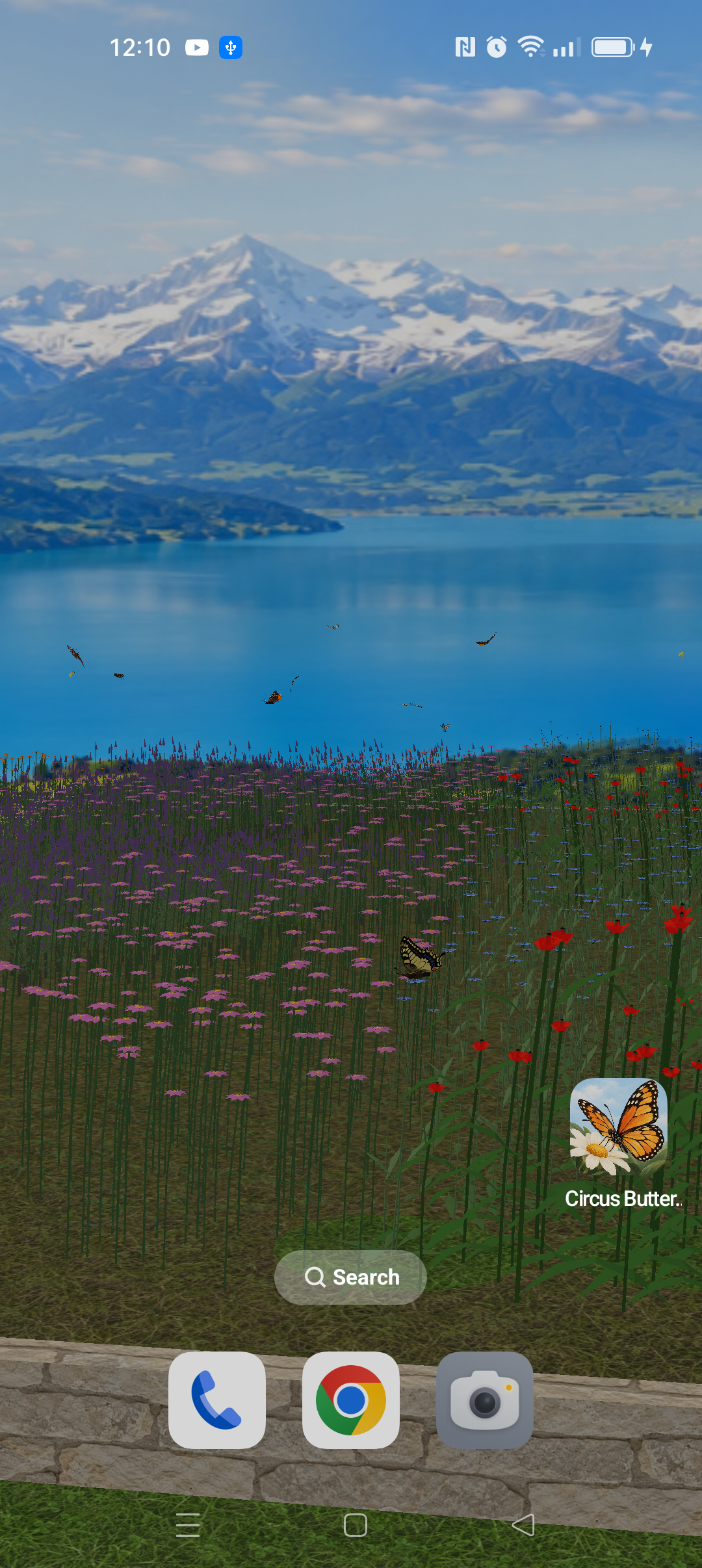
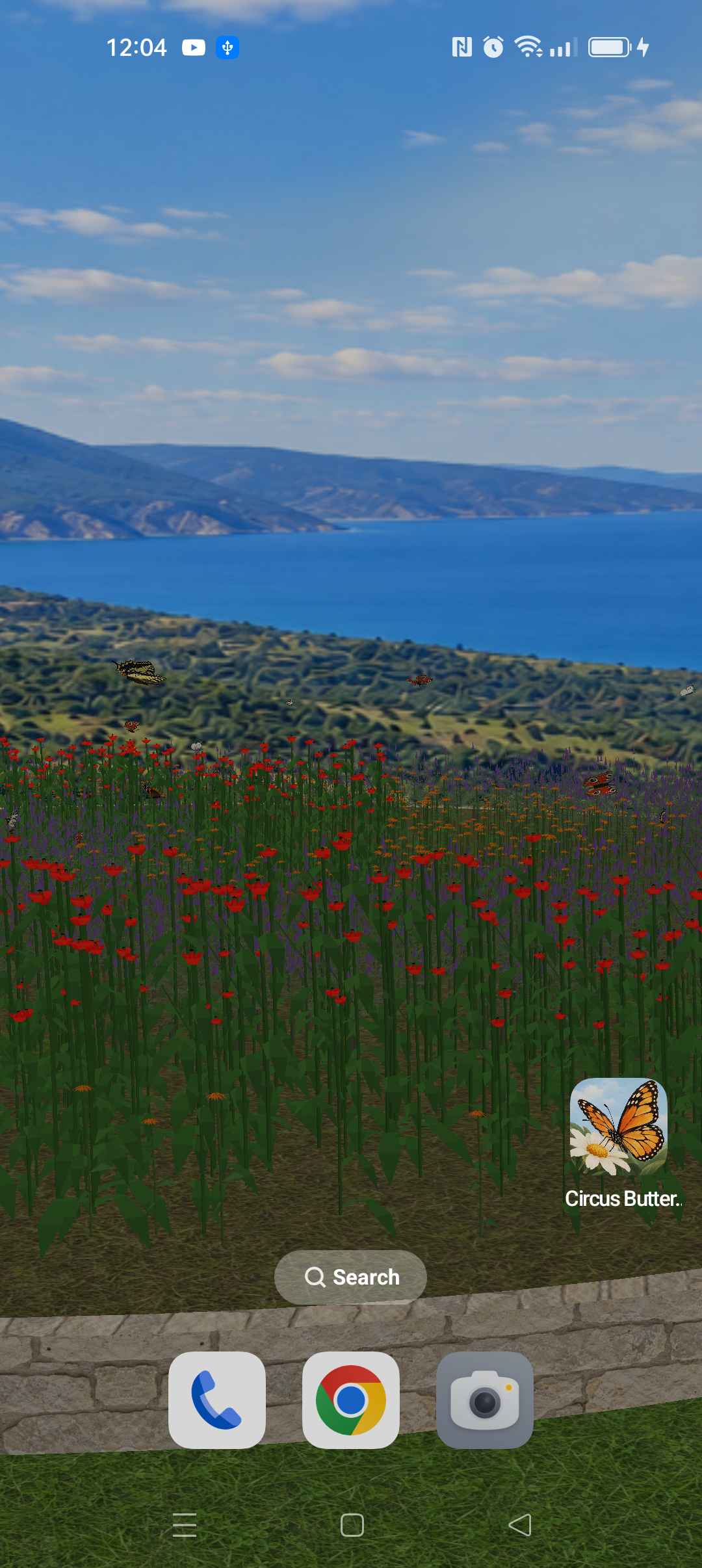
A living garden. On your phone.
Flowers, butterflies and landscapes in a 3D live wallpaper.

Let the flight become a show.
Spirals, waves and rosettes: six formations to watch.
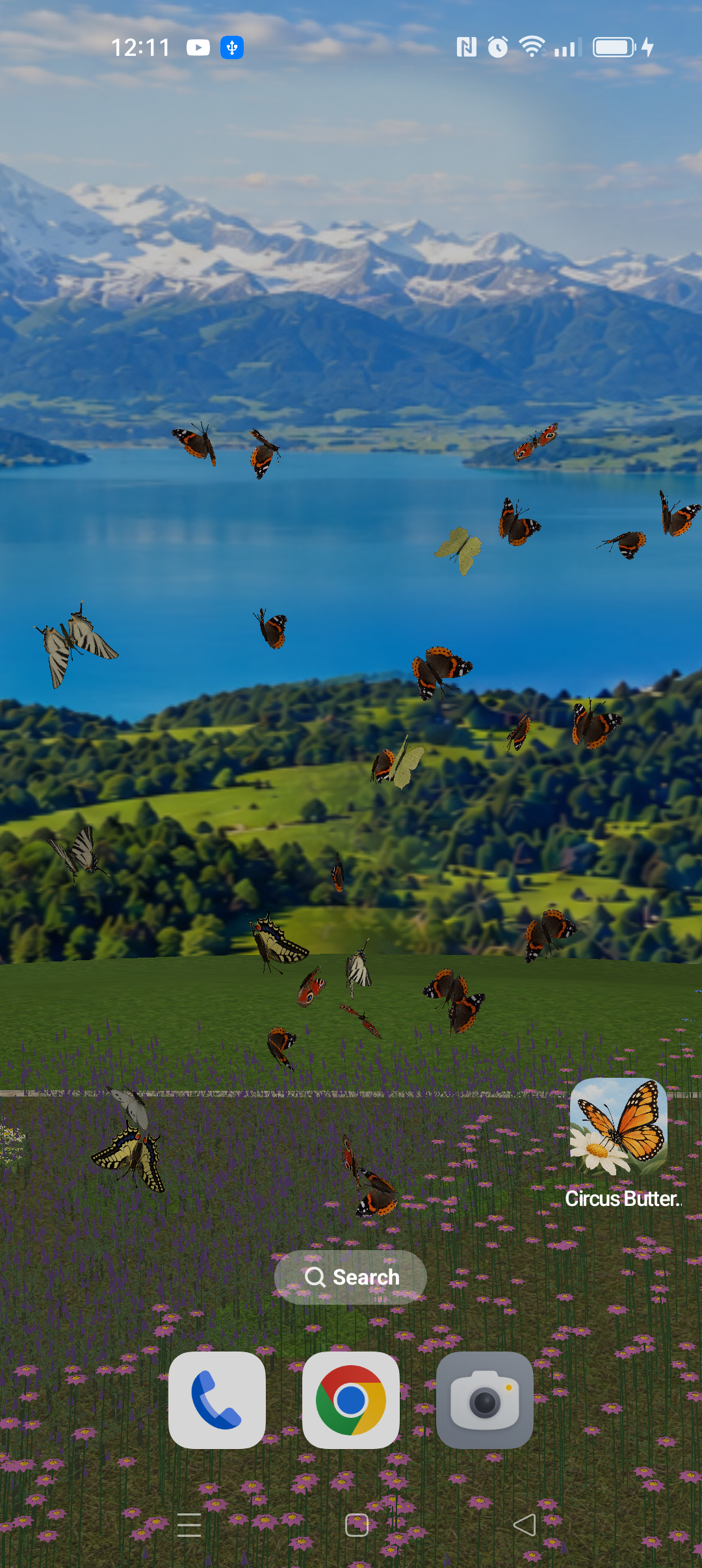
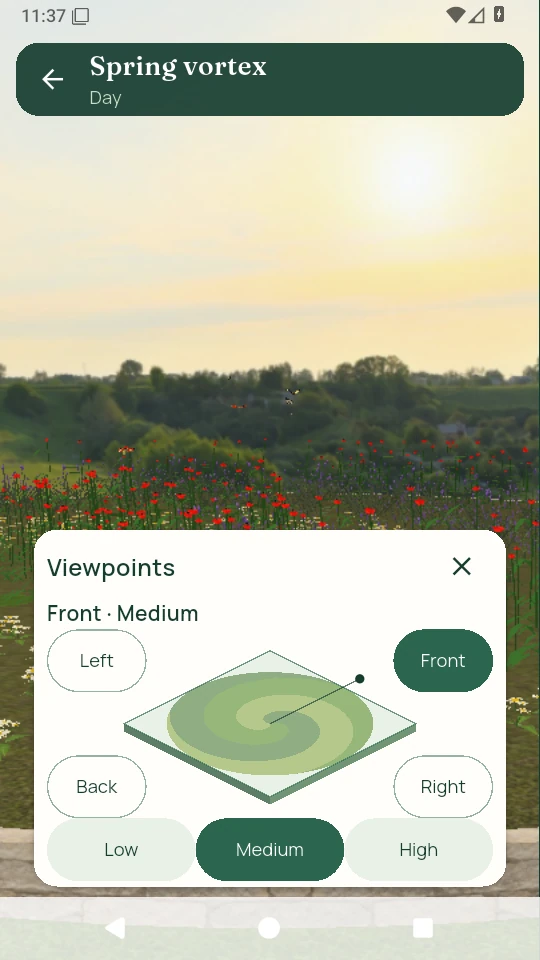
Step into the garden. Change your perspective.
Explore the 3D scene and use the map to move between 12 viewpoints.
- Choose the viewing side and height.
- Start the butterfly show or apply the garden as a live wallpaper.

Find your starting point.
16 ready-made compositions. Make any of them your own.
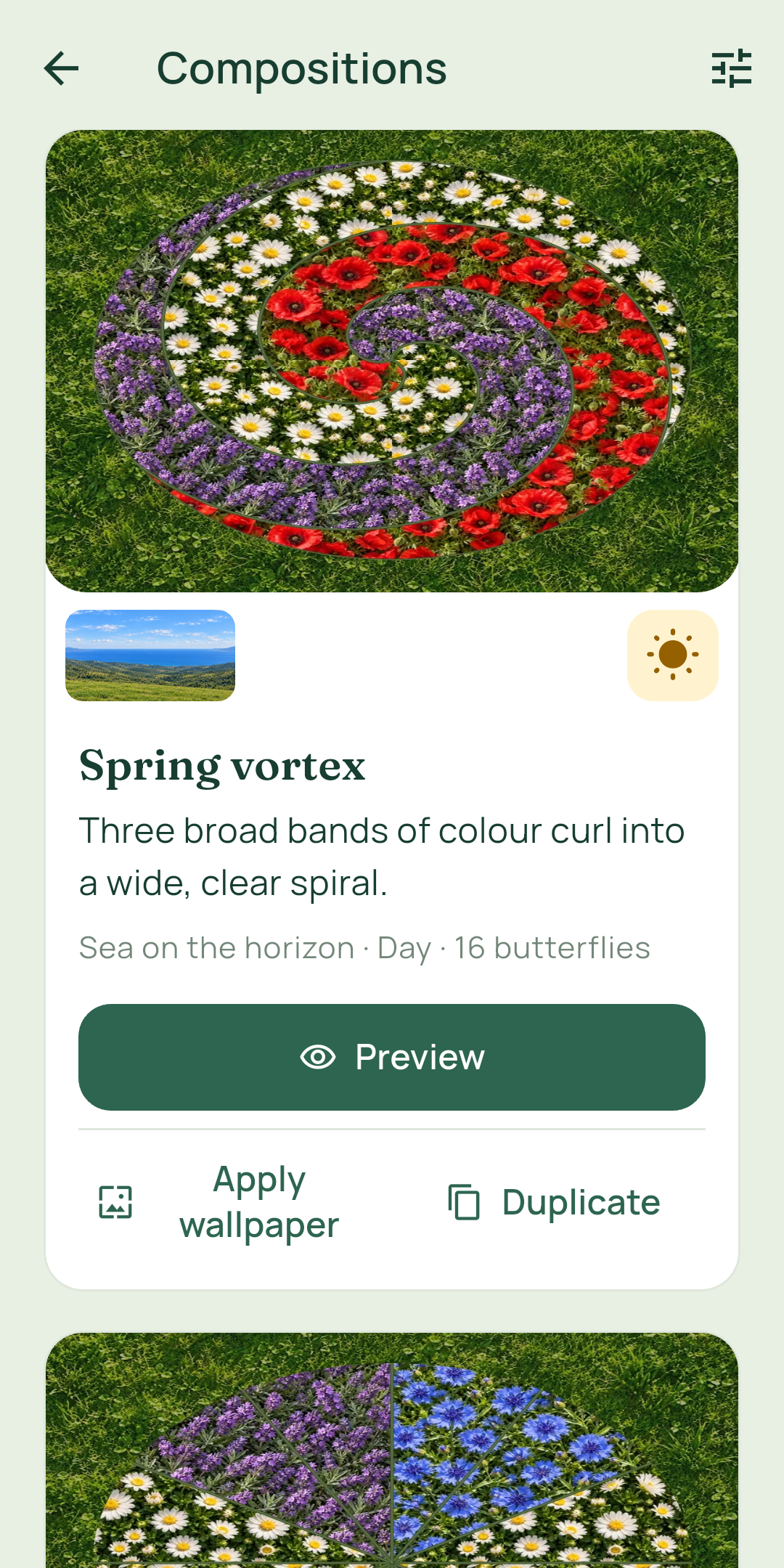
Browse 16 ready-made compositions and find your own creations in the same collection.
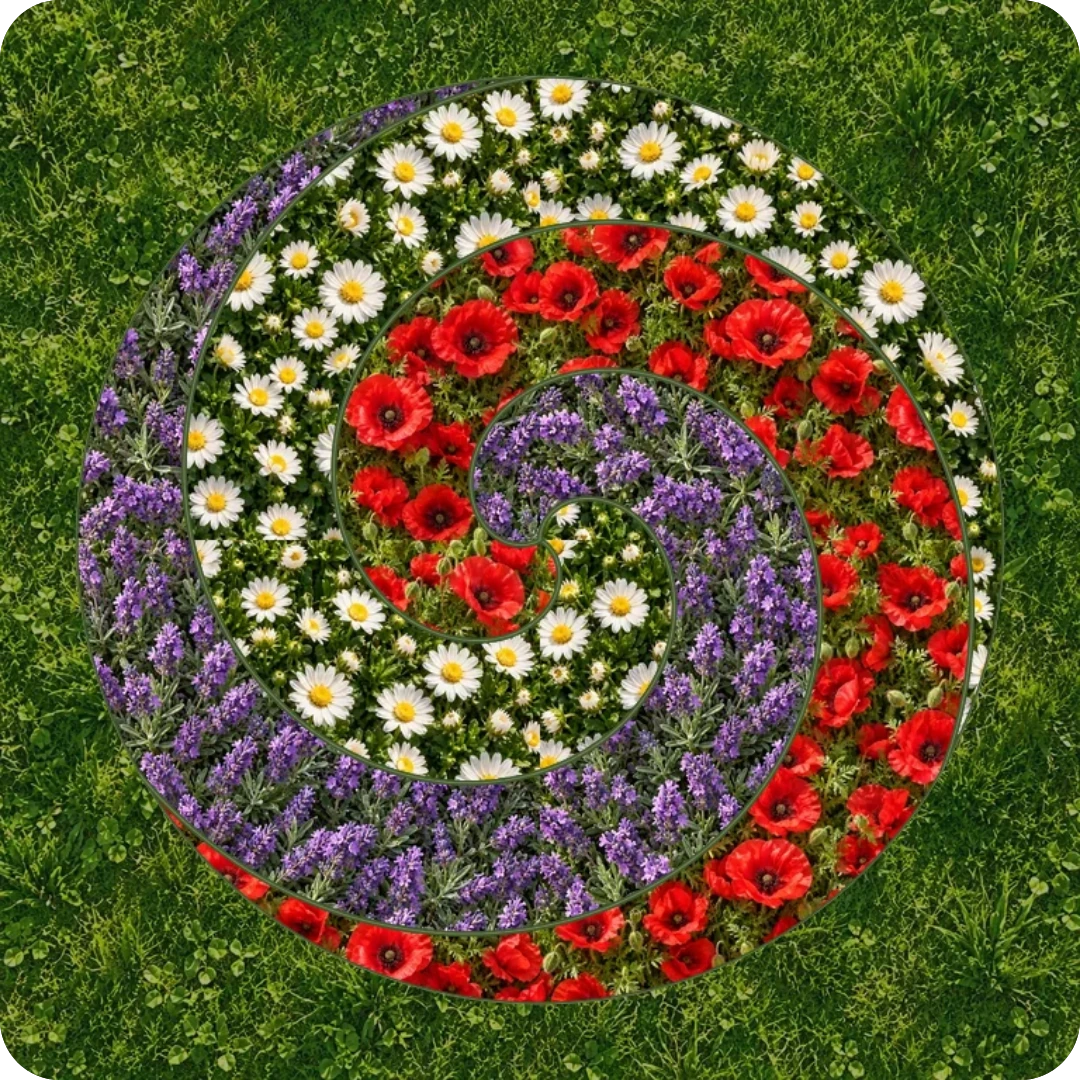
Spring vortex
 Sea on the horizon
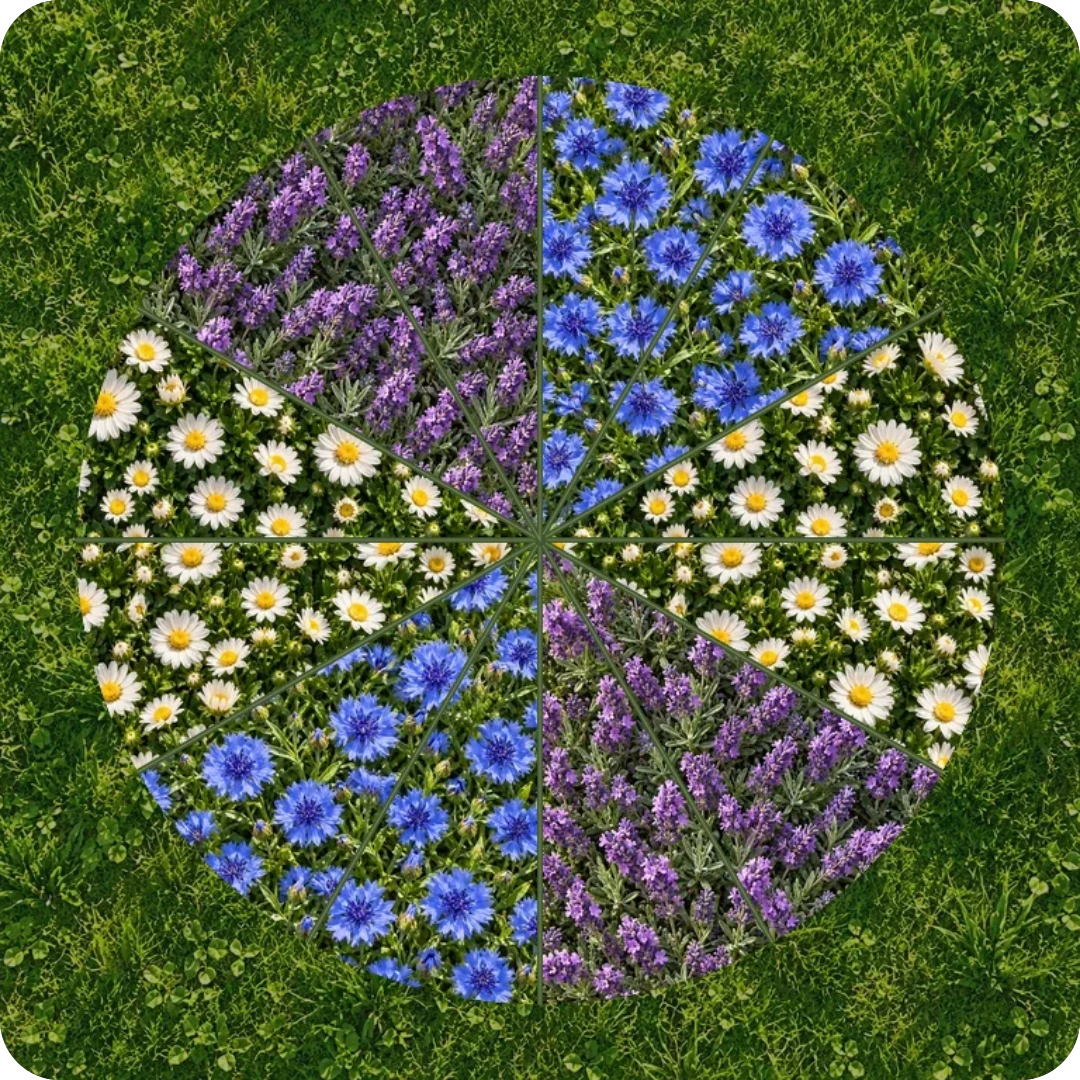
Blue rosette
 Woodland edge
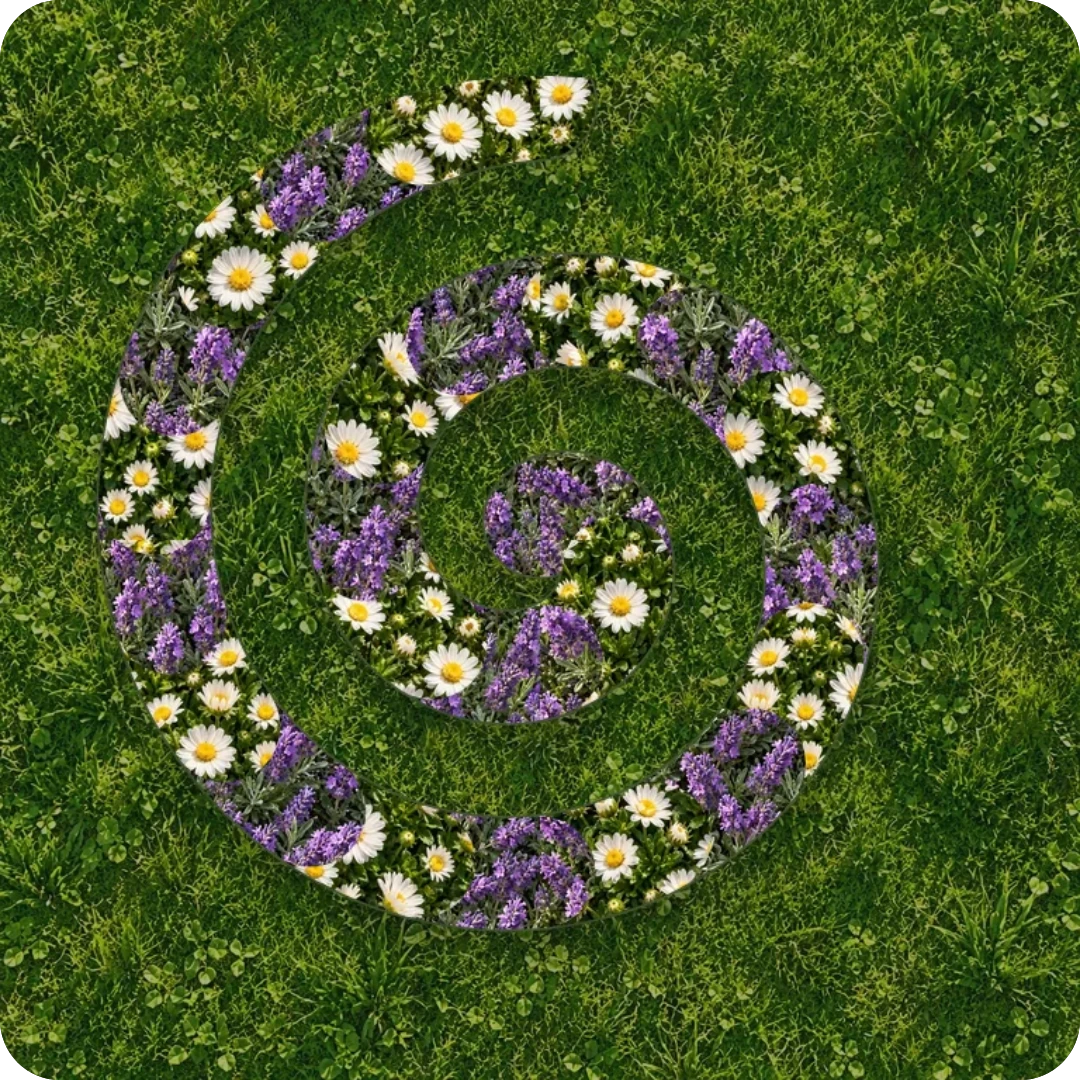
Lavender ribbon
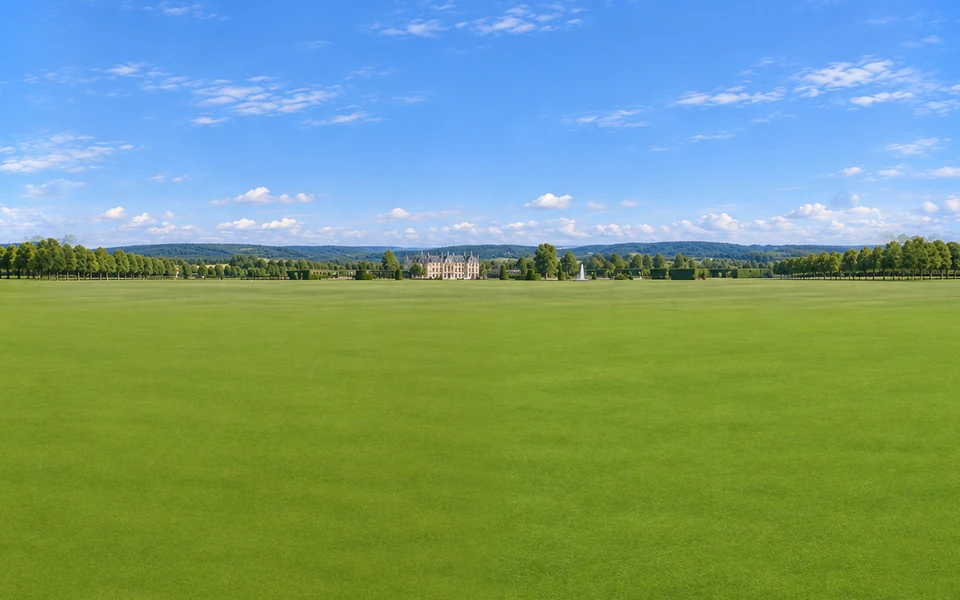 Formal garden
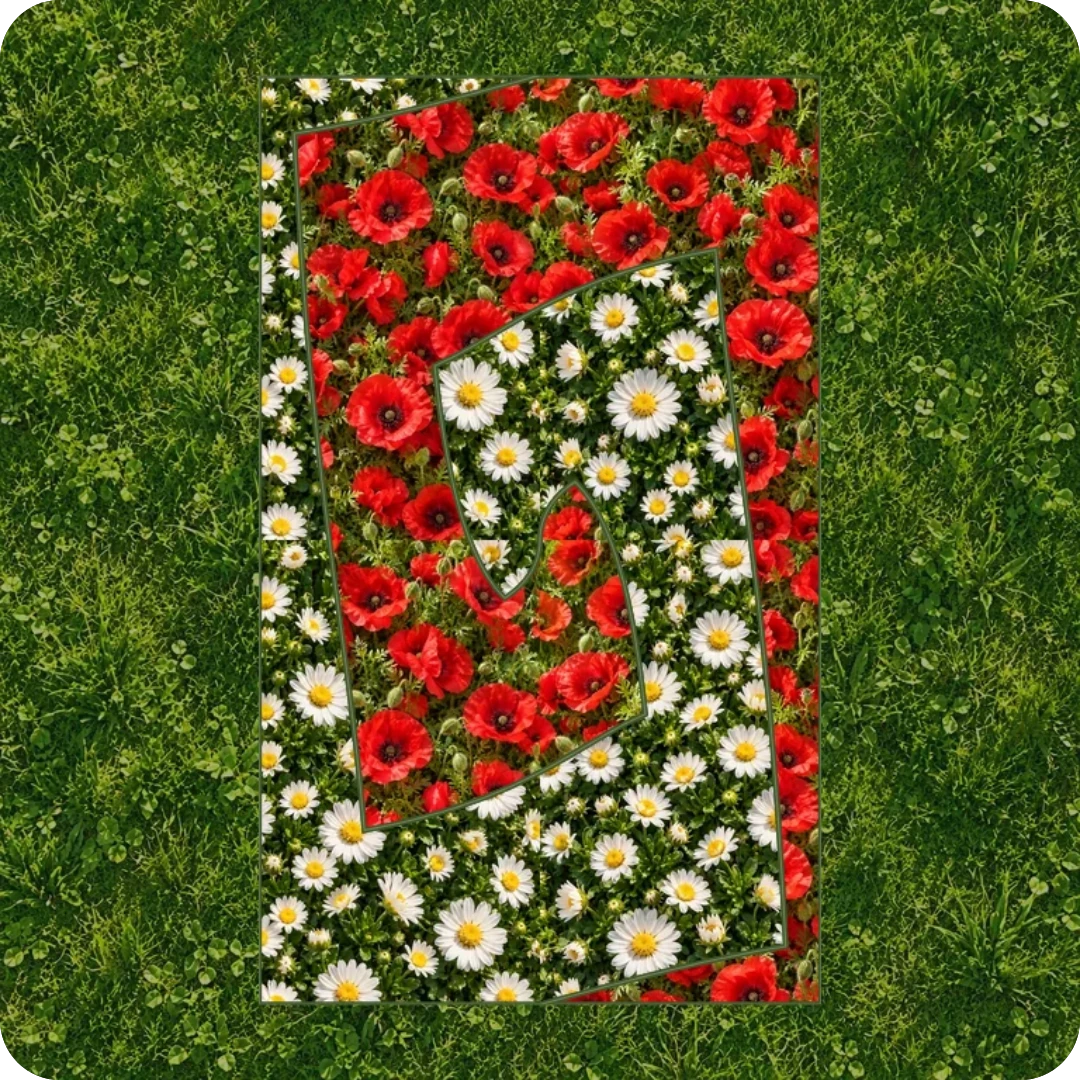
Poppy waves
Sea on the horizon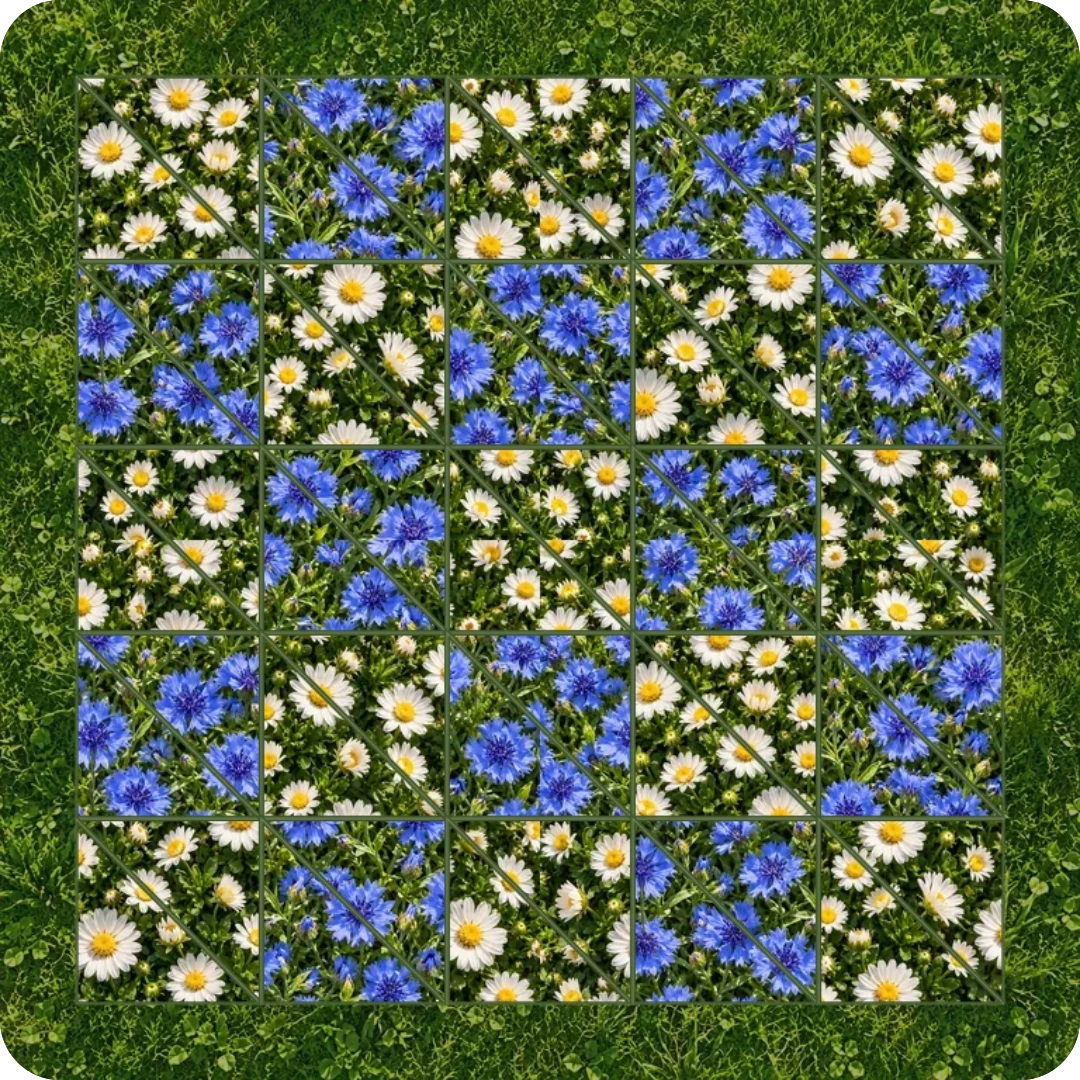
Flowering checkerboard
Sea on the horizon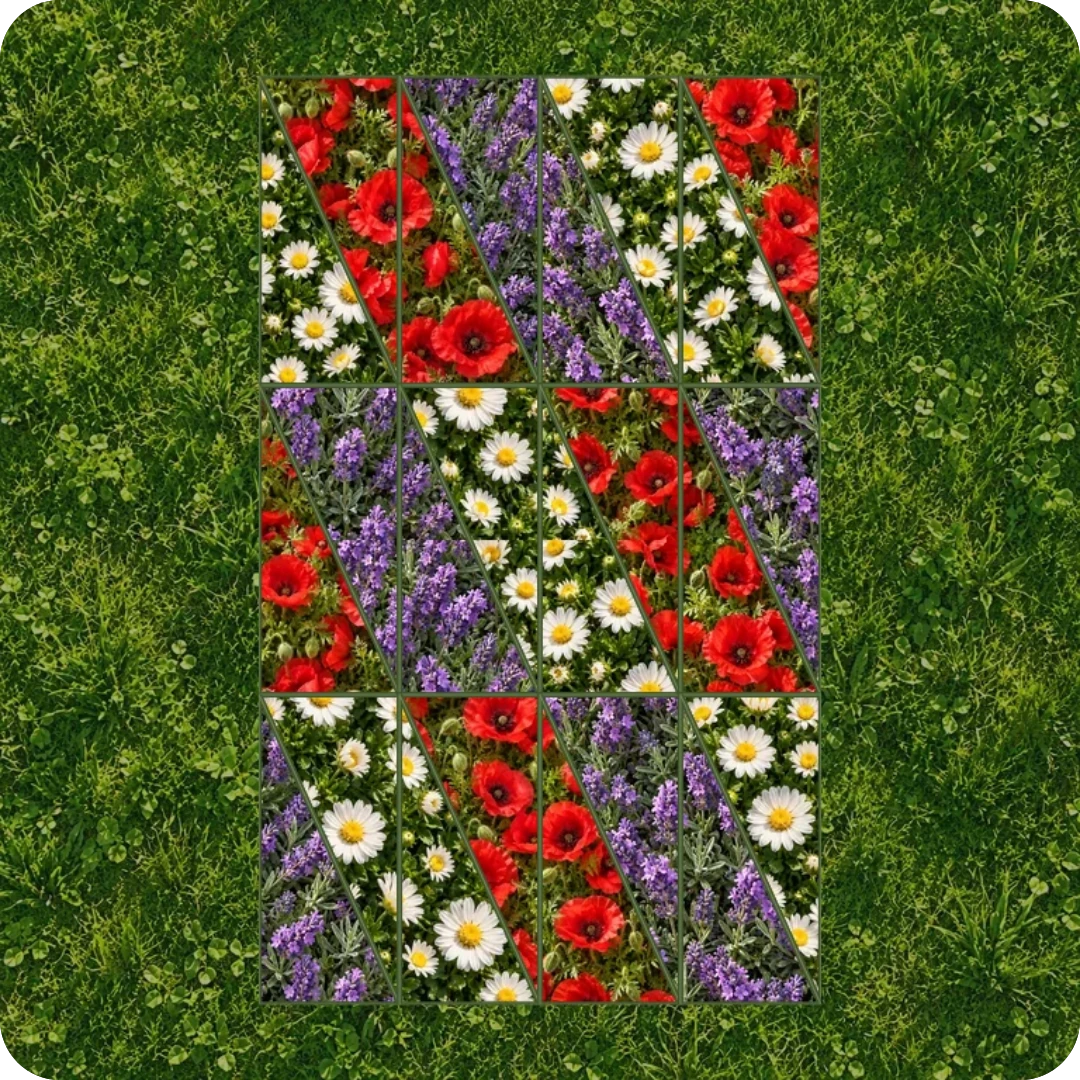
Country mosaic
 Mountain lake
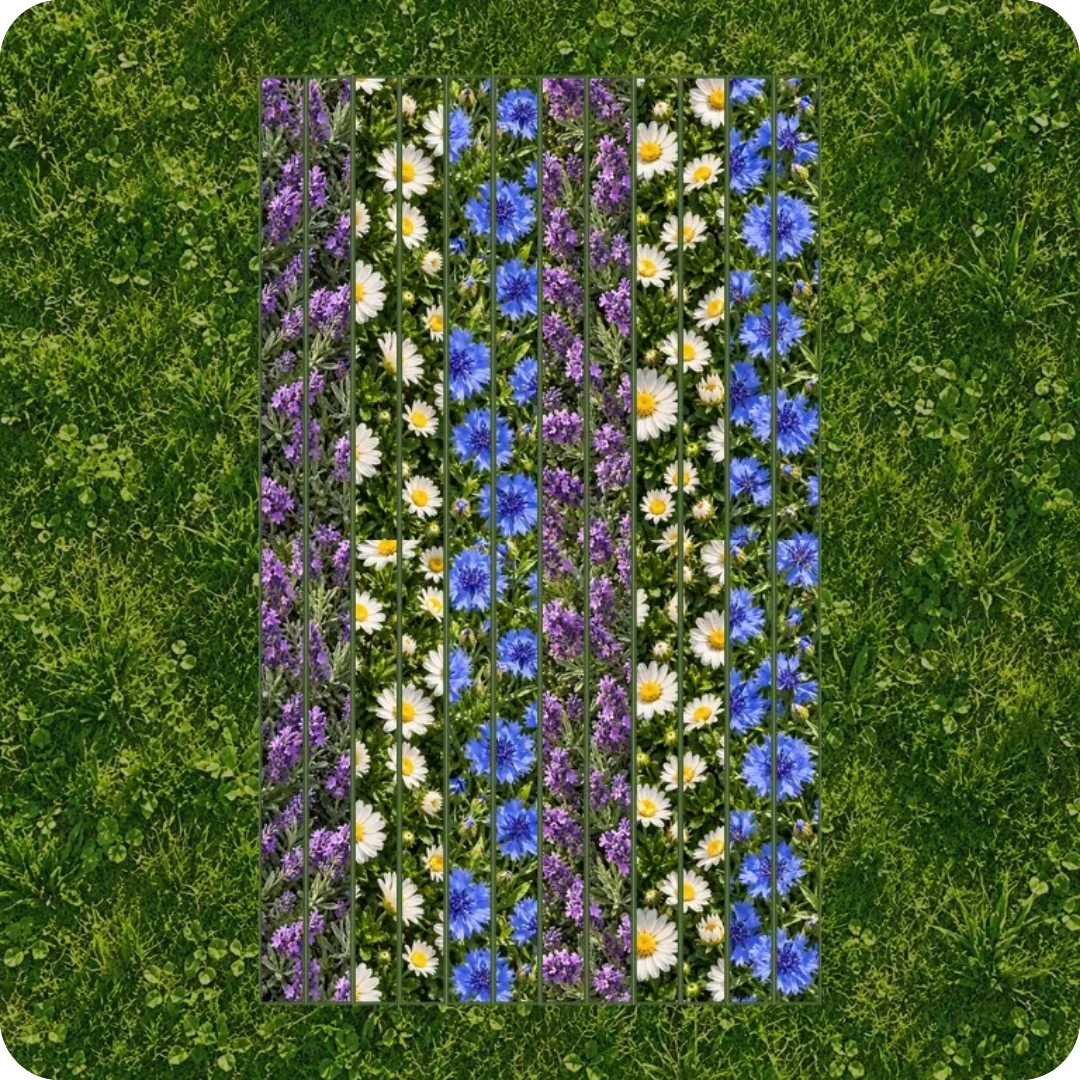
Double rows
 Open hills
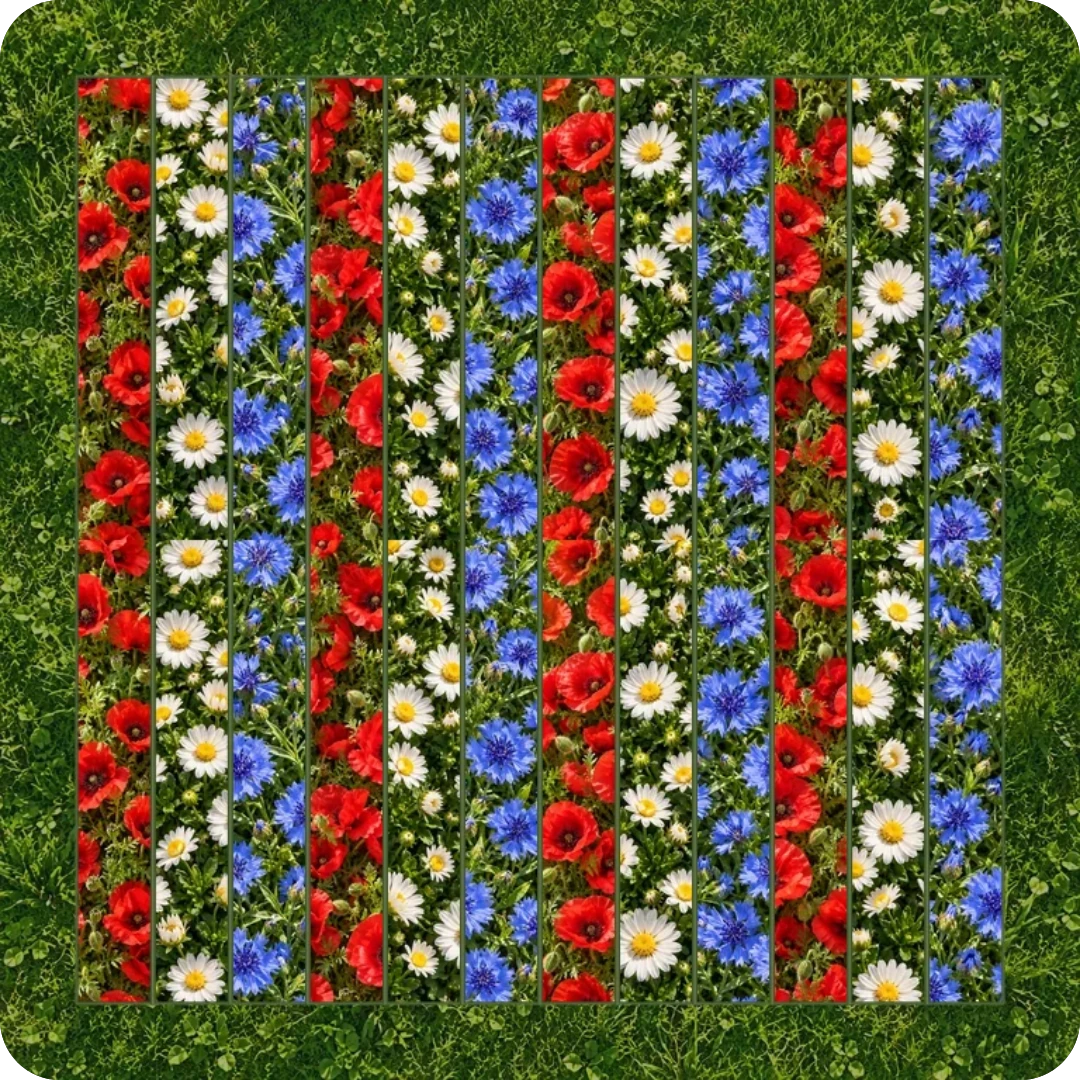
Summer stripes
Sea on the horizon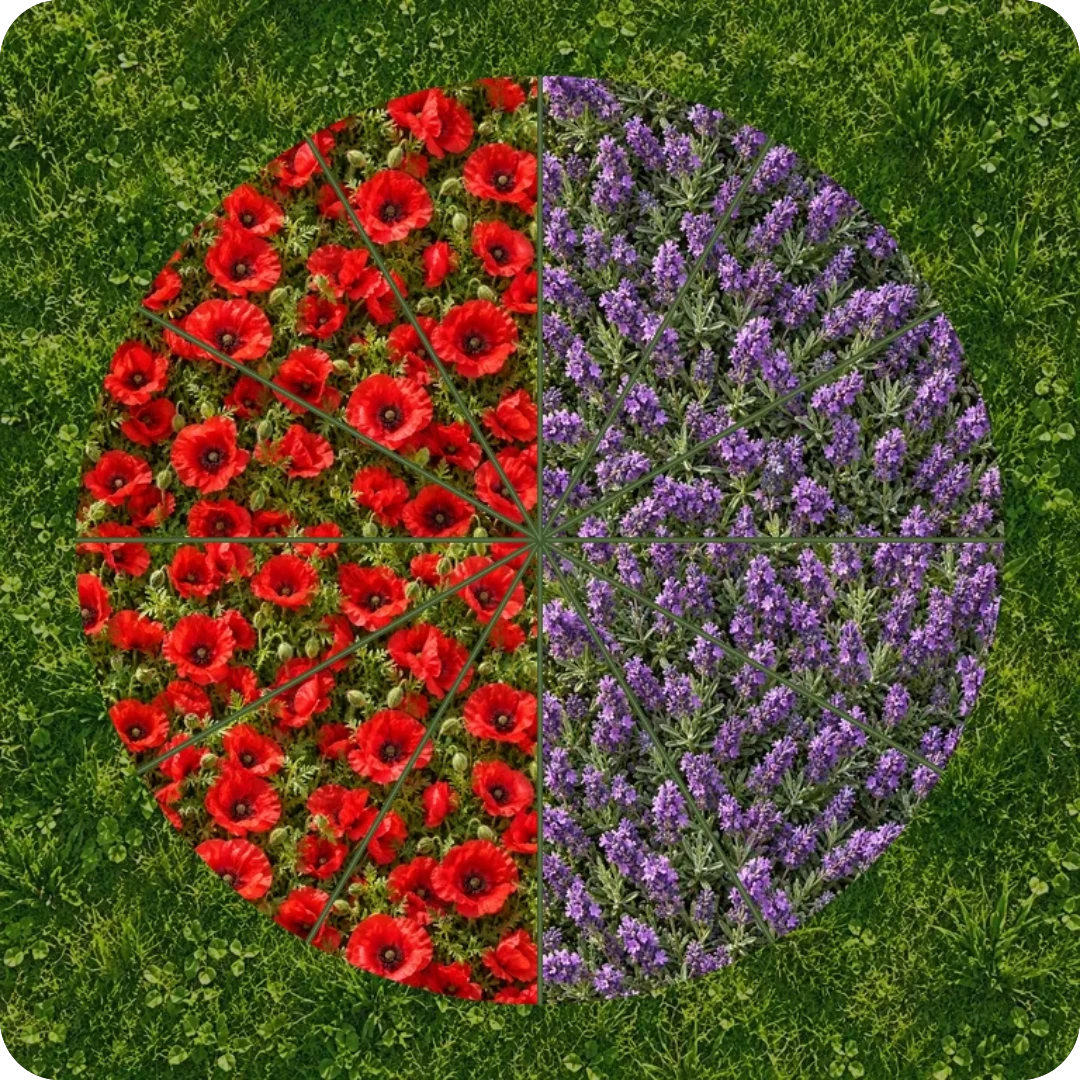
Two moods
Formal garden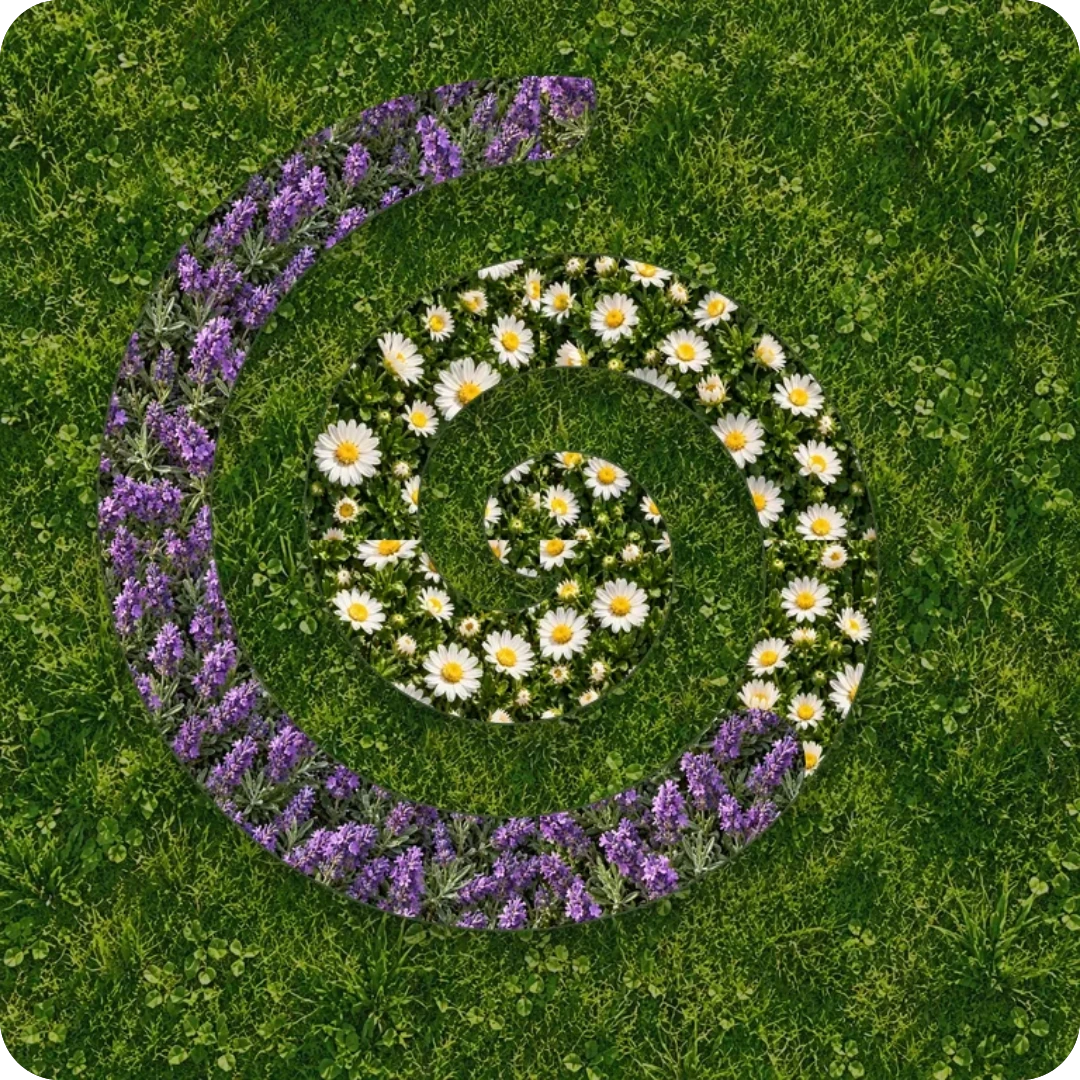
Pale heart
 Italian terraces
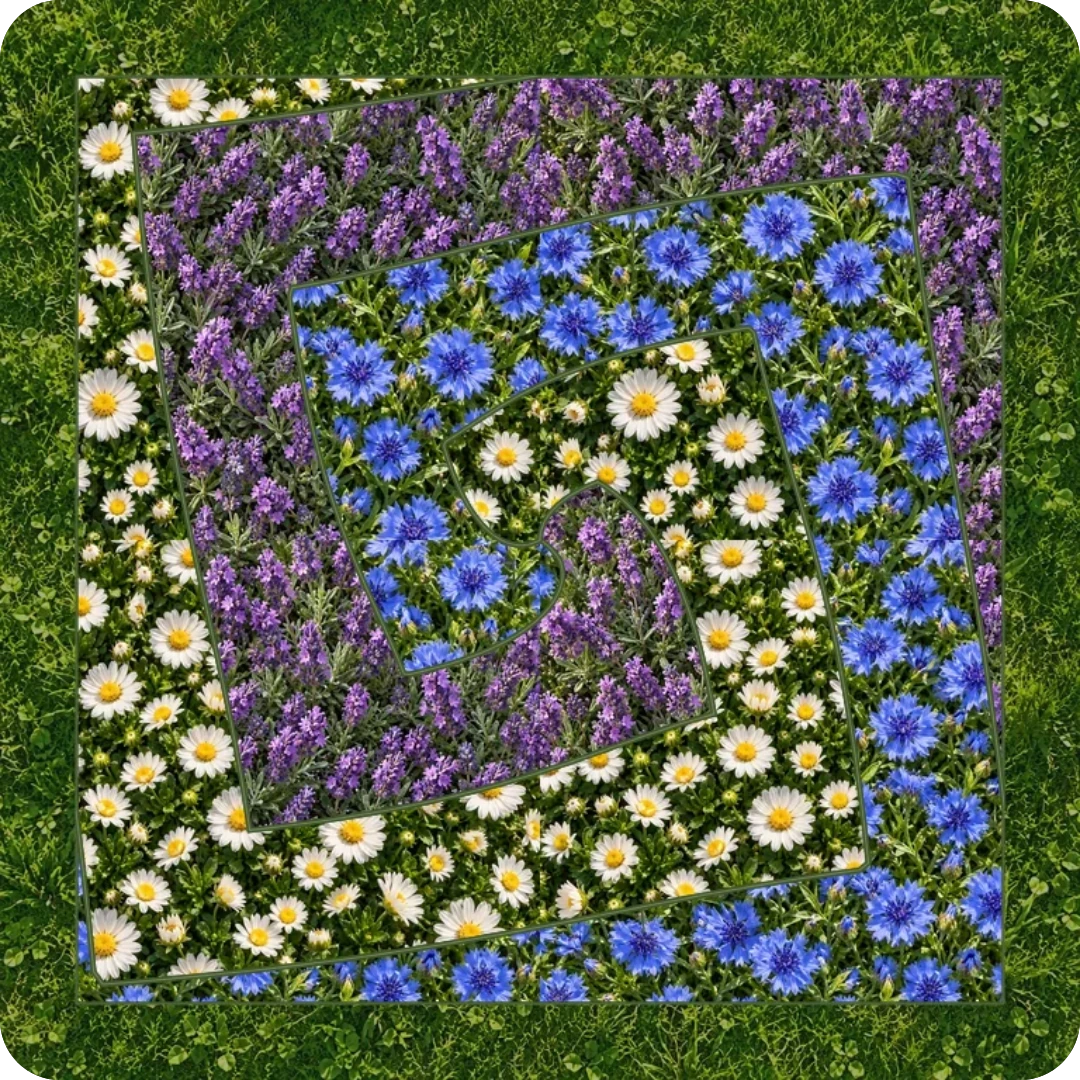
Lilac vortex
Sea on the horizon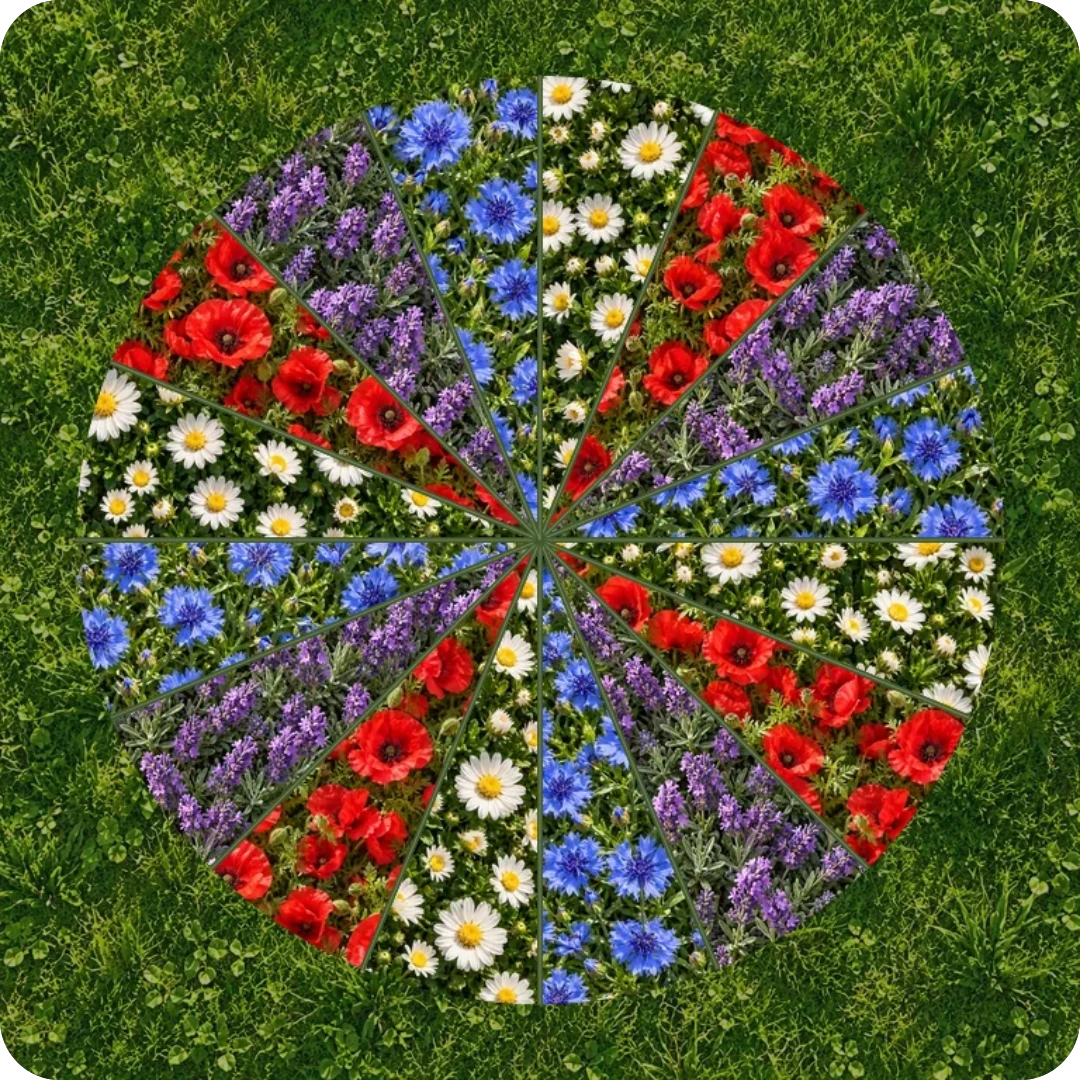
Four colours
Mountain lake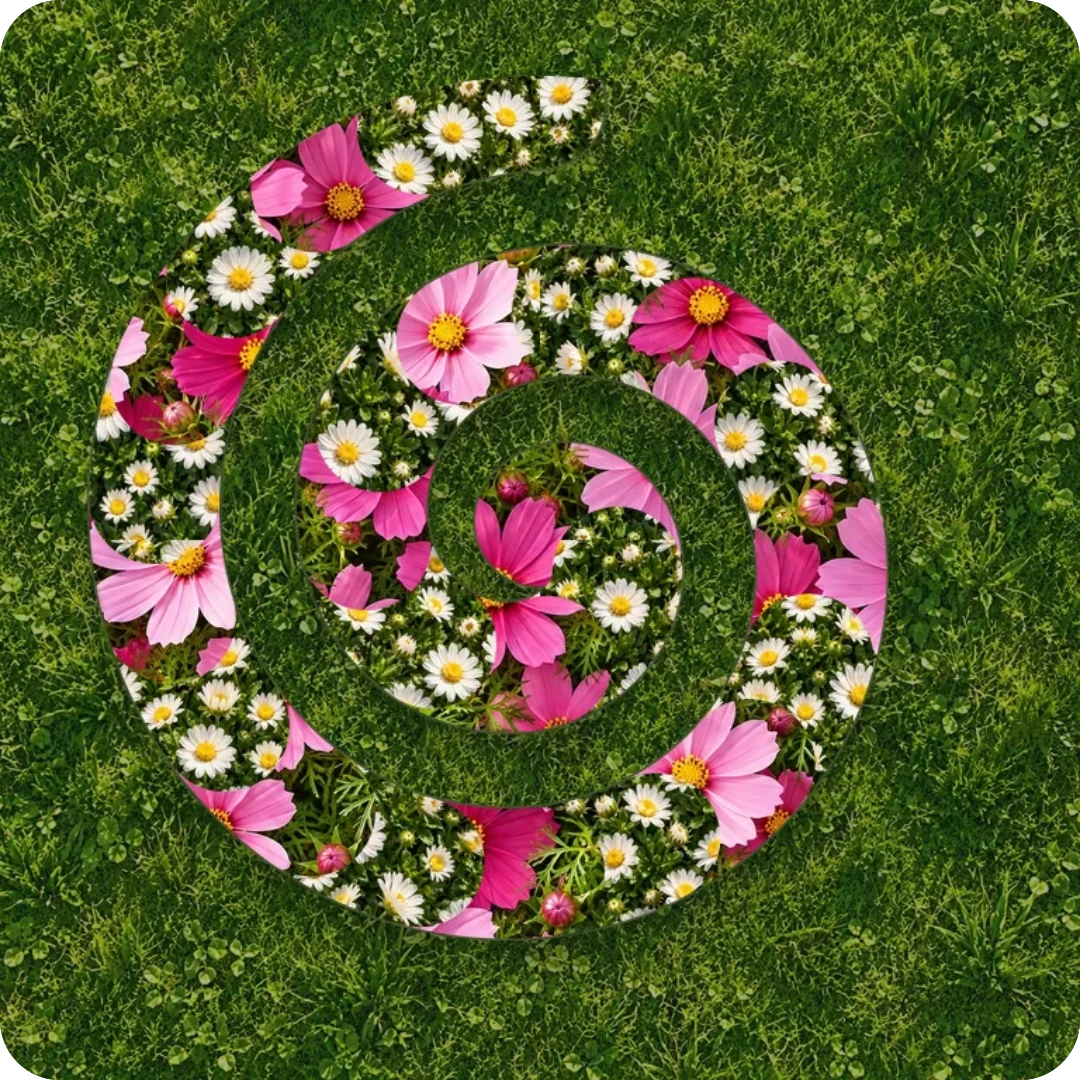
Pink dawn
Open hills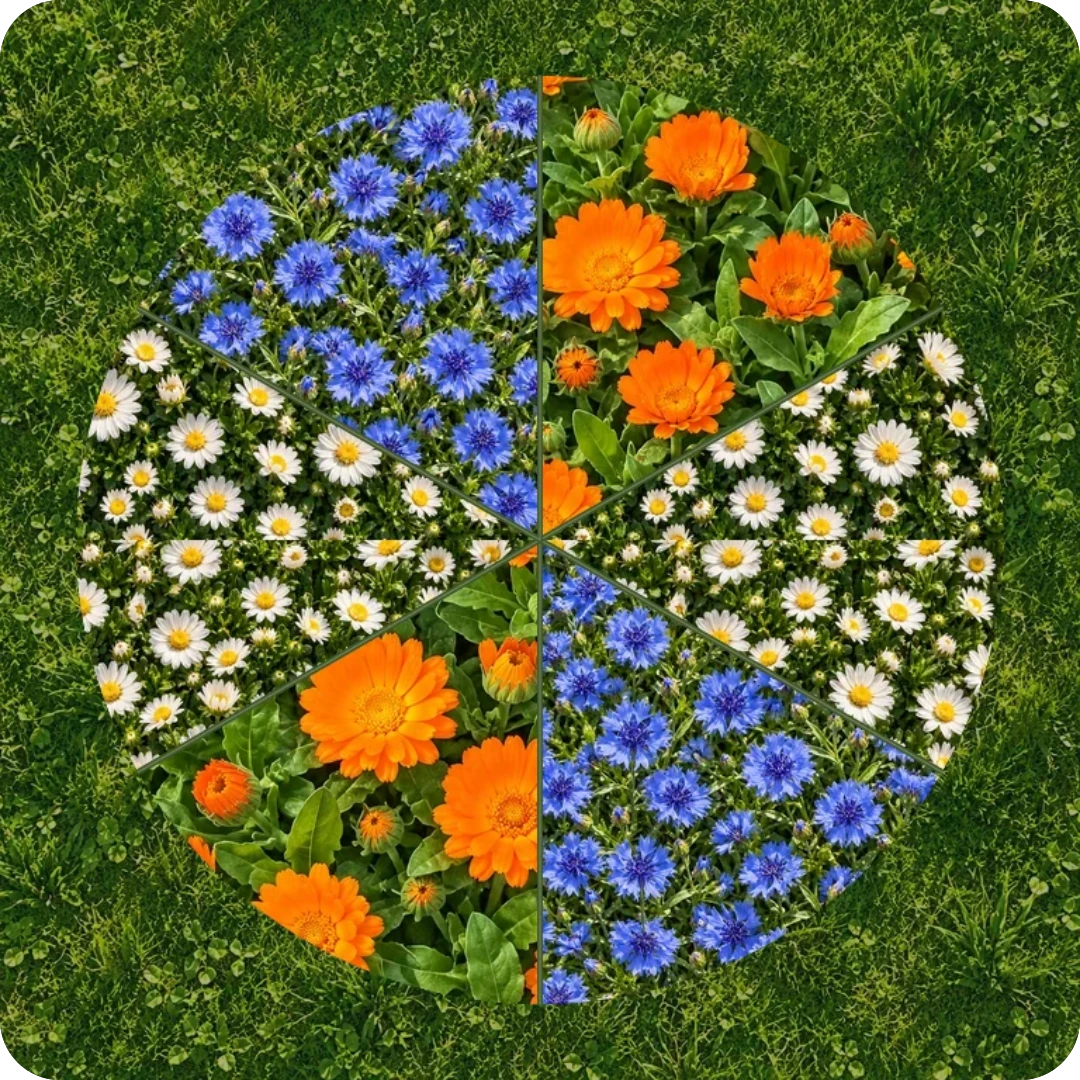
Sun in the garden
Sea on the horizon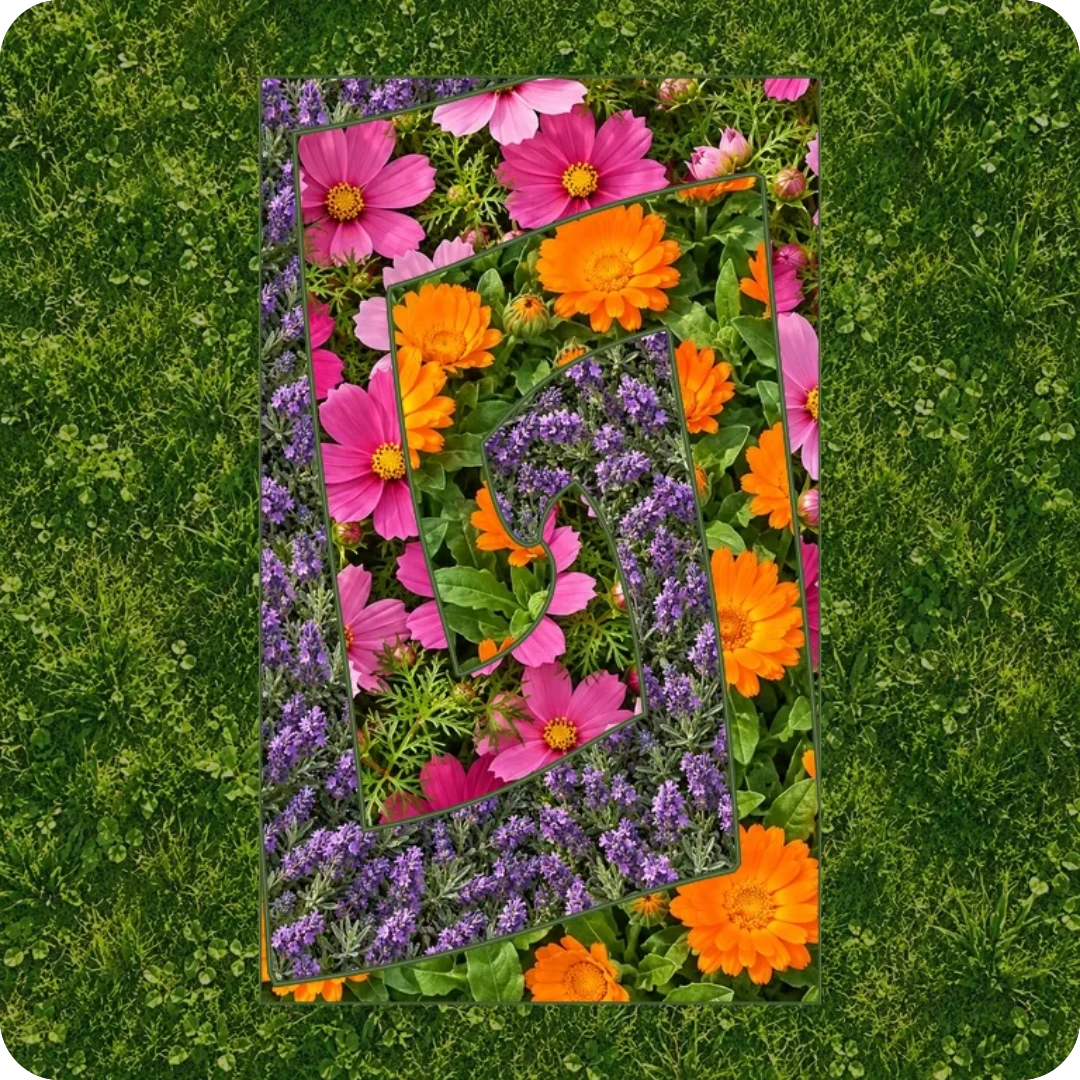
Sunset ribbons
Formal garden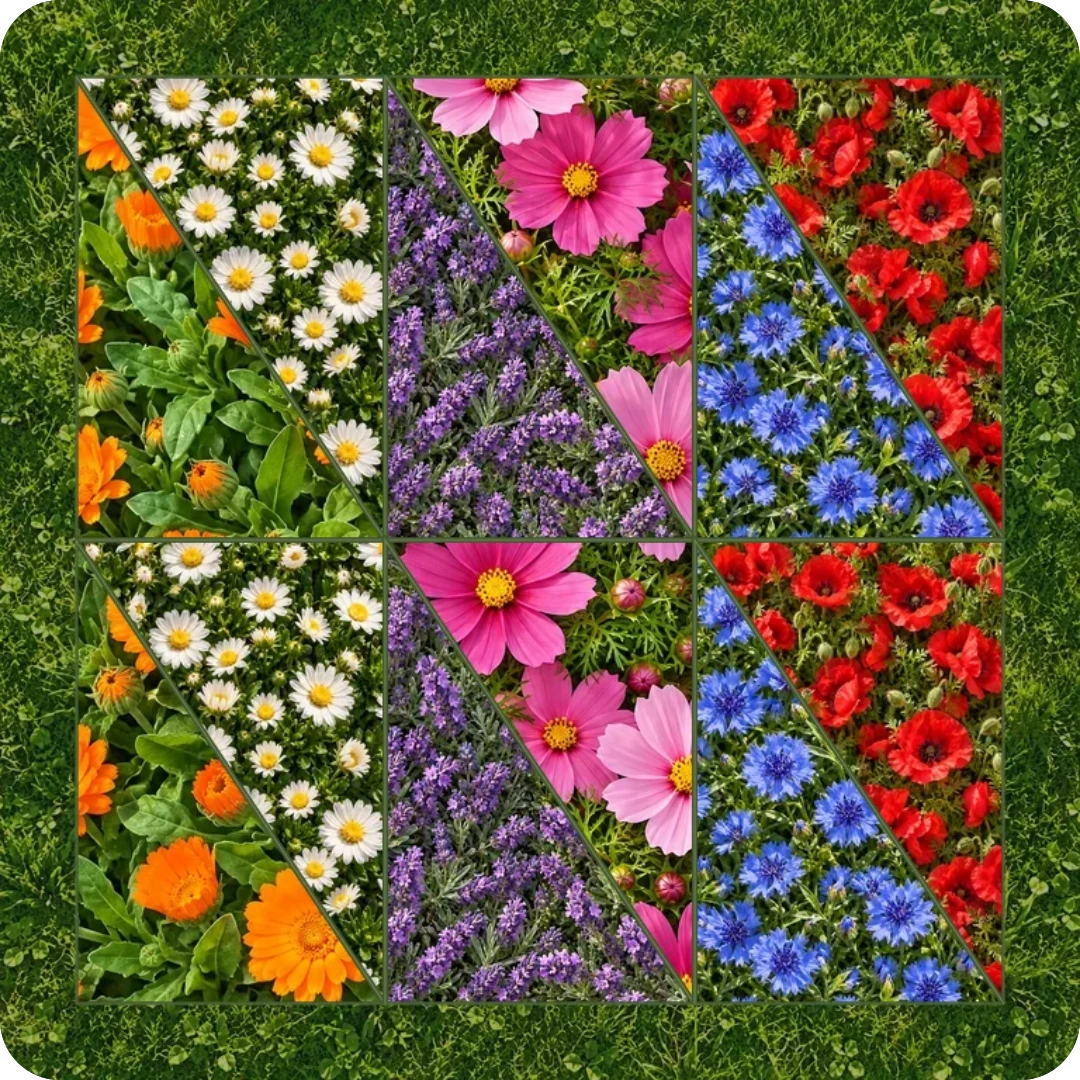
Summer celebration
Italian terracesA garden of your own.
Start with a shape. Pick the flowers for each bed.
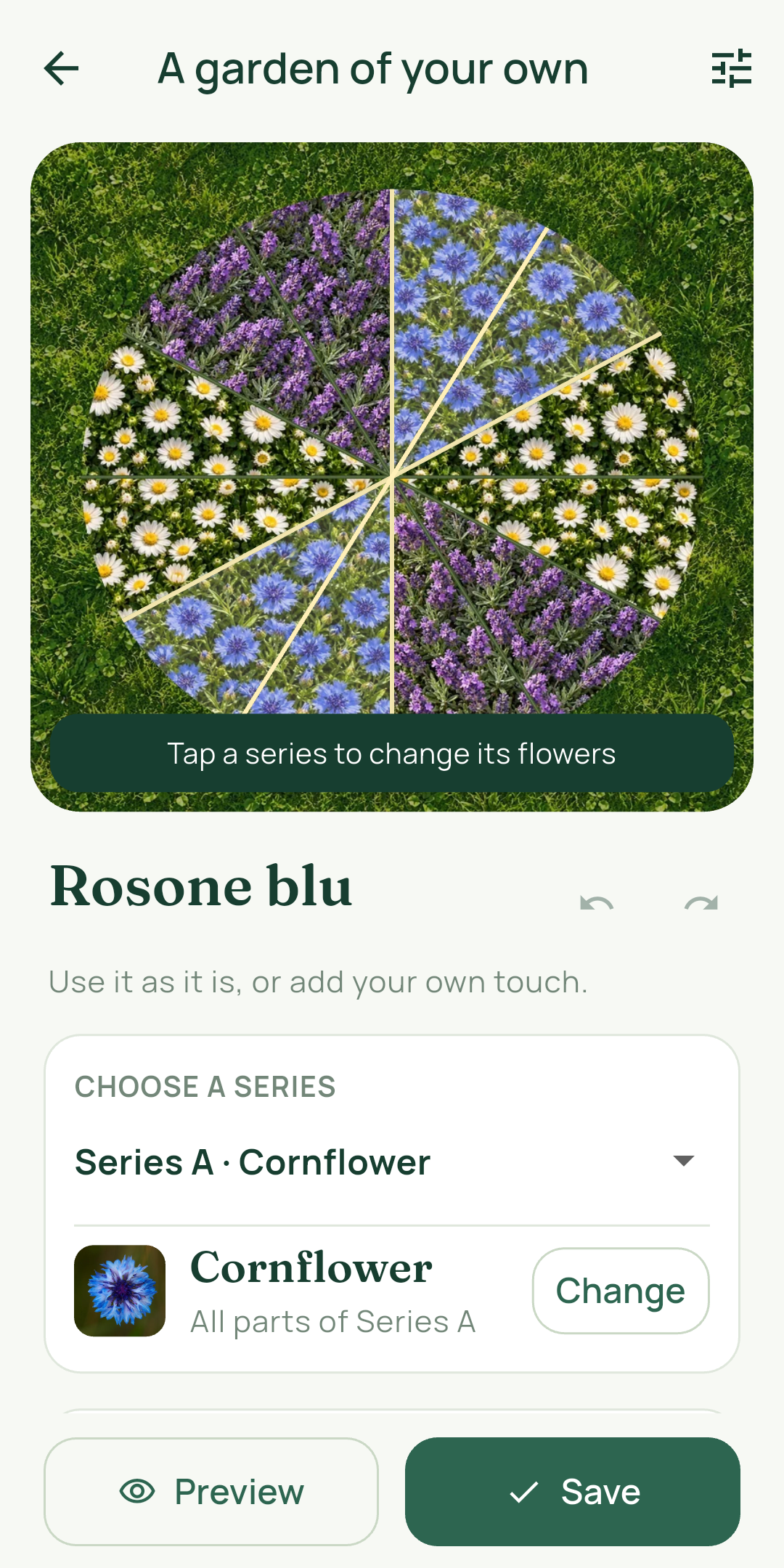
Start with a layout you like, personalise the flowerbeds and save your garden with a name.
Tap a group of flowerbeds to change its flowers. Reopen and edit your compositions whenever you like.
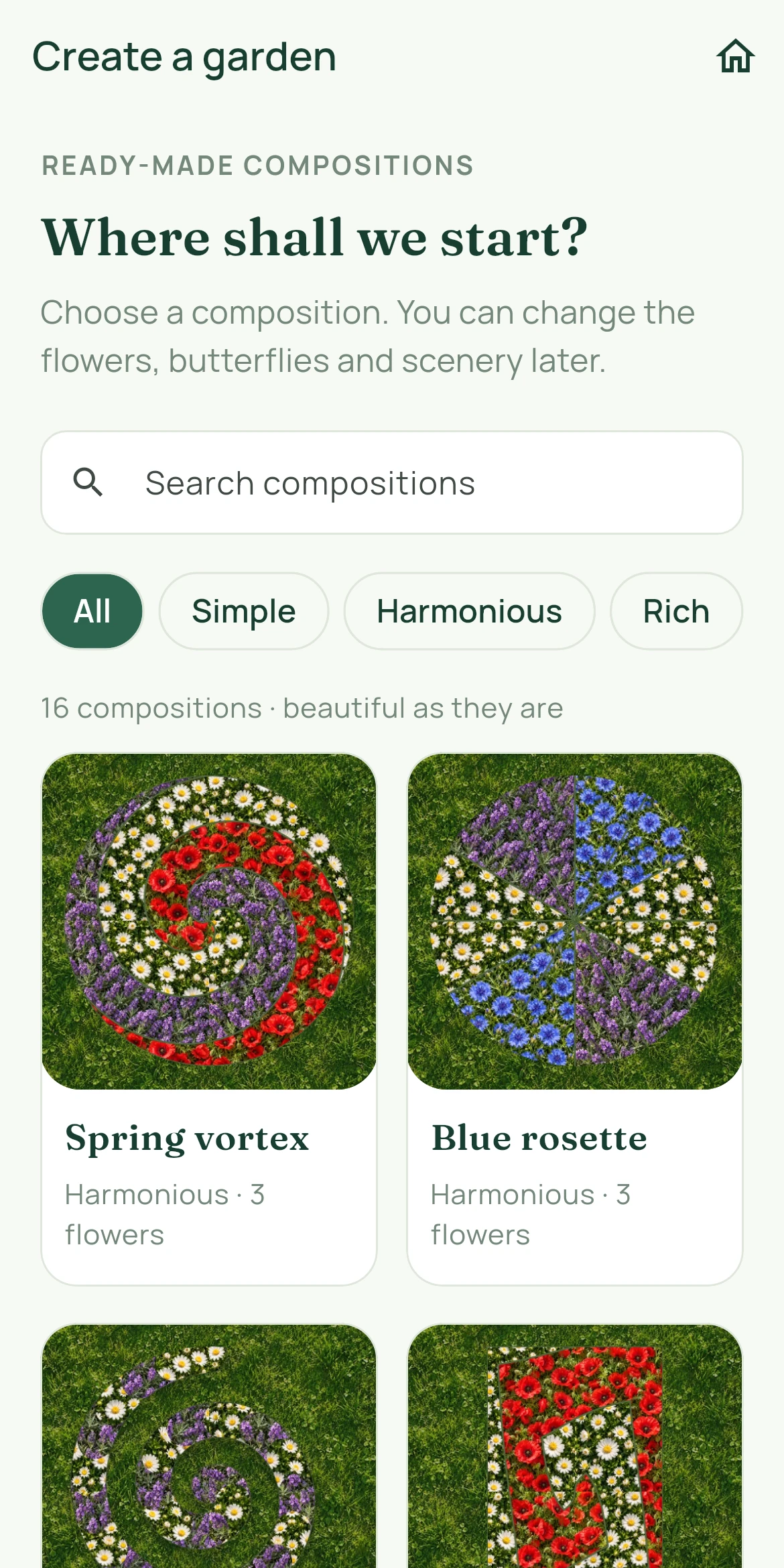

Your flower beds. Your colours.
Daisies, lavender, poppies and more to combine.
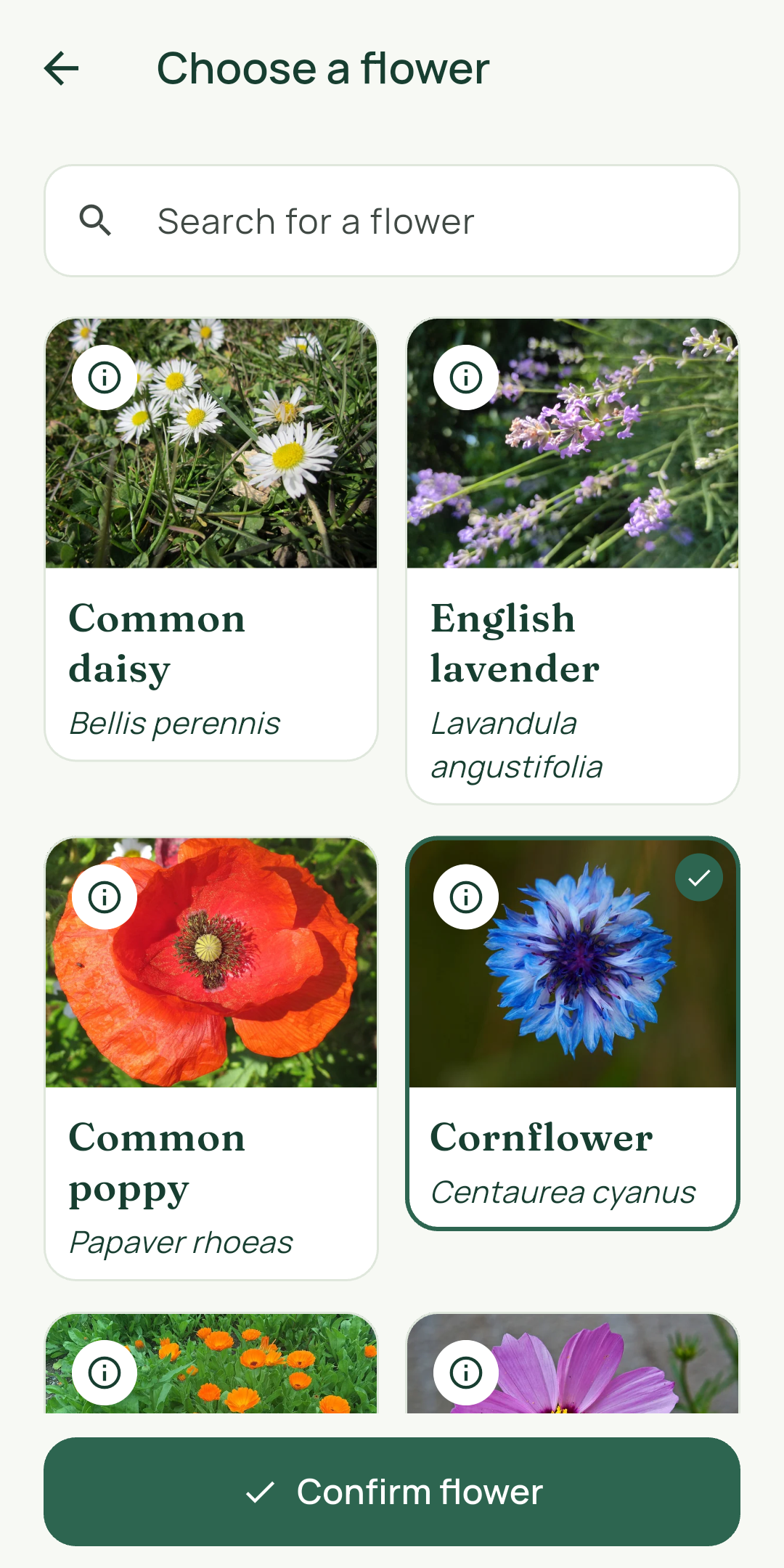
Papaver rhoeas - Robert Flogaus-Faust · CC BY 4.0 · Centaurea cyanus - Michael Apel (MichaD) · CC BY-SA 3.0 · Calendula officinalis - Betty Cai · CC BY-SA 4.0 · Cosmos bipinnatus - Photo: Joydeep / Wikimedia Commons · CC BY-SA 3.0
Licenses
Choose who flies here.
Pick the butterfly species and how many fill your garden.
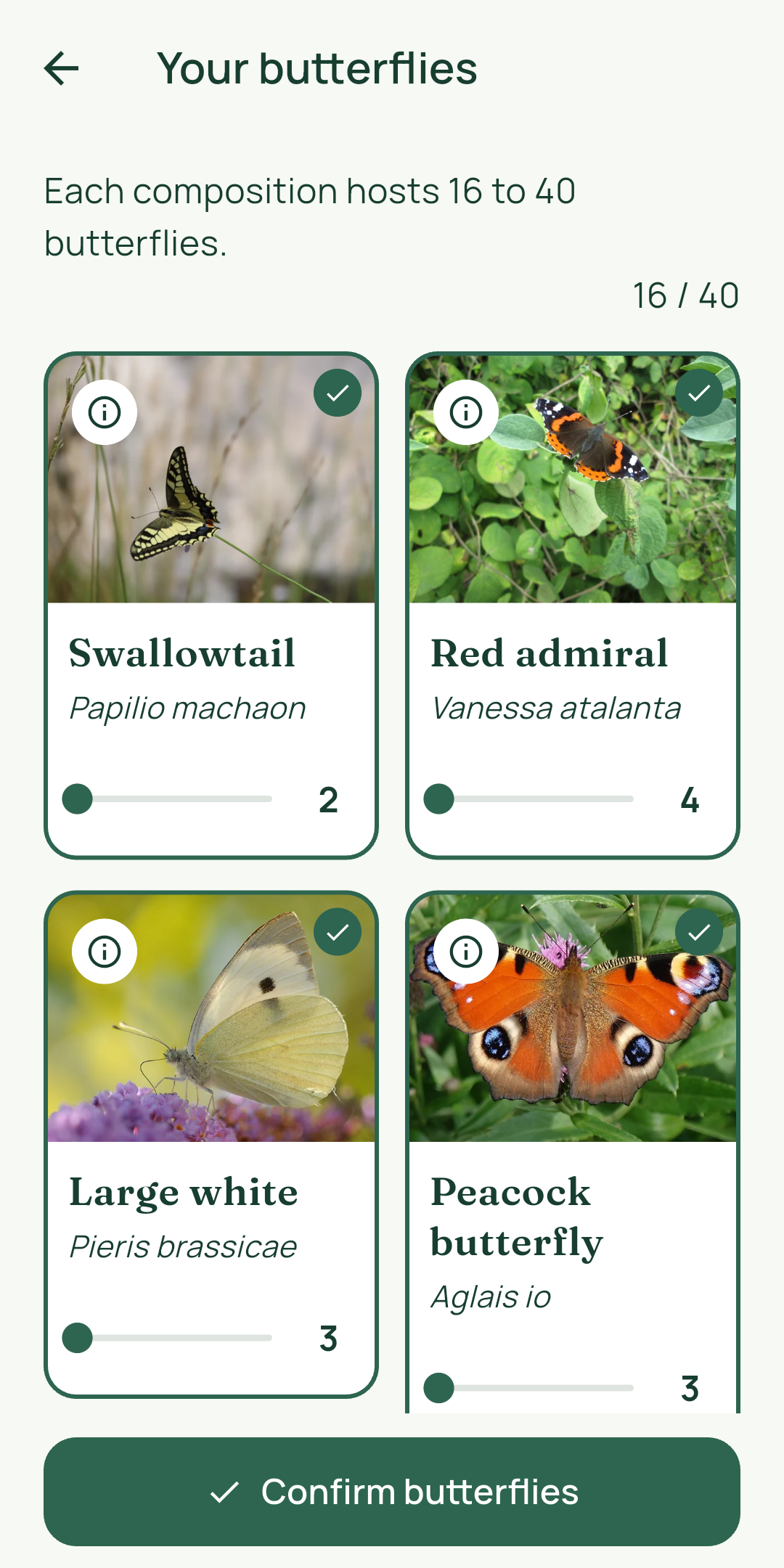
Pieris brassicae - Photo: Thomas Bresson (ComputerHotline) · CC BY 2.0 · Aglais io - Tero Laakso (talaakso) · CC BY 2.0 · Gonepteryx rhamni - Charles J. Sharp / Sharp Photography · CC BY-SA 4.0
LicensesYour garden, throughout the day.
Choose “Phone time”: daylight, sunset and night follow your day.
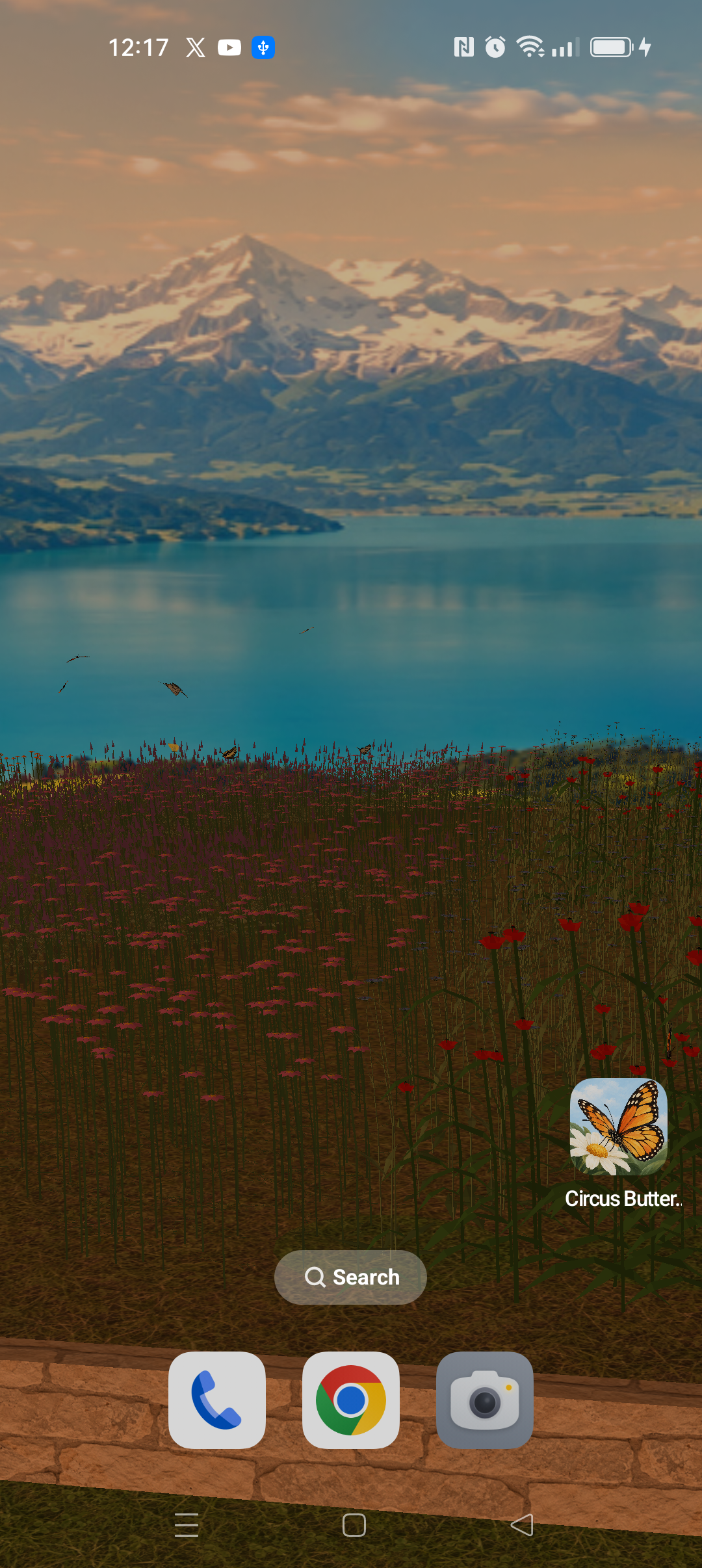
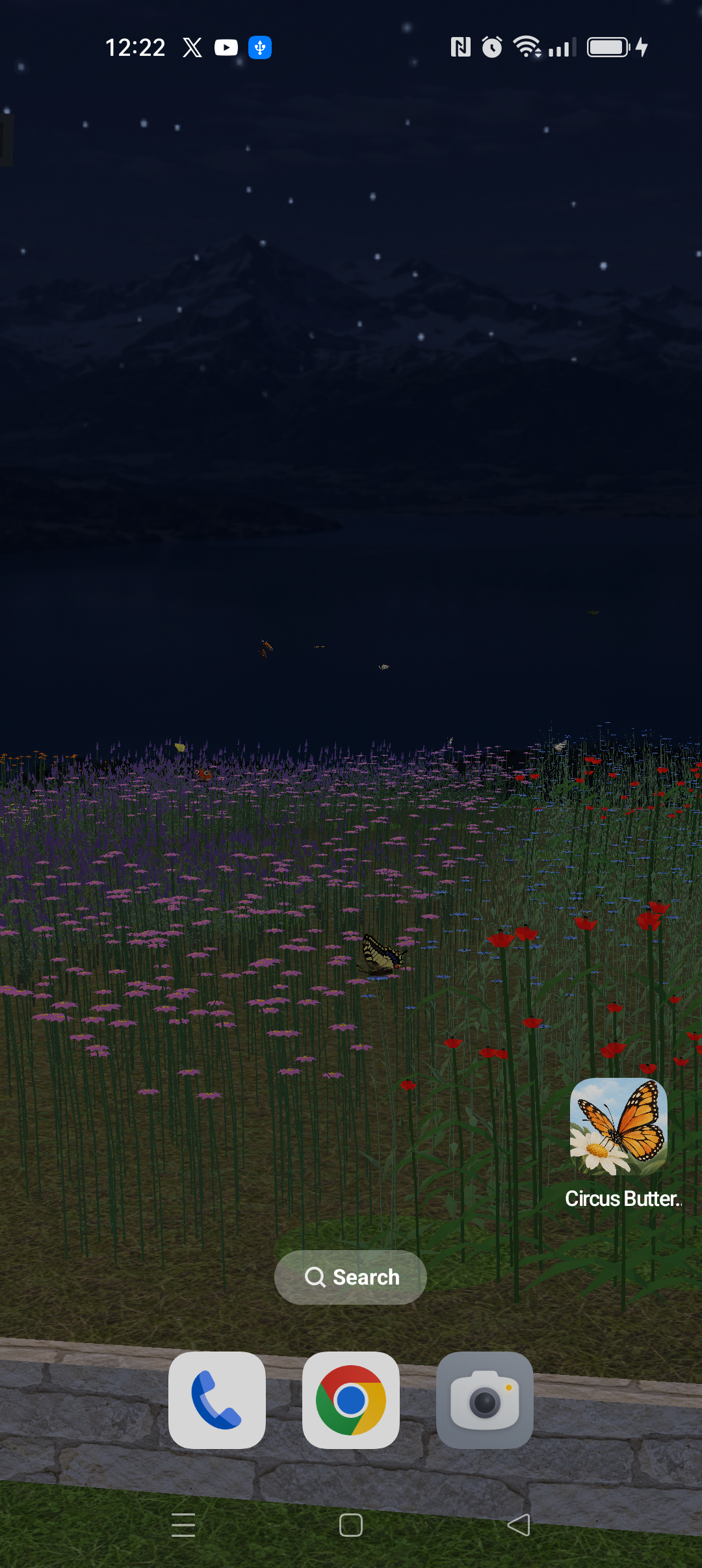
Choose from six landscapes and set the lighting independently.
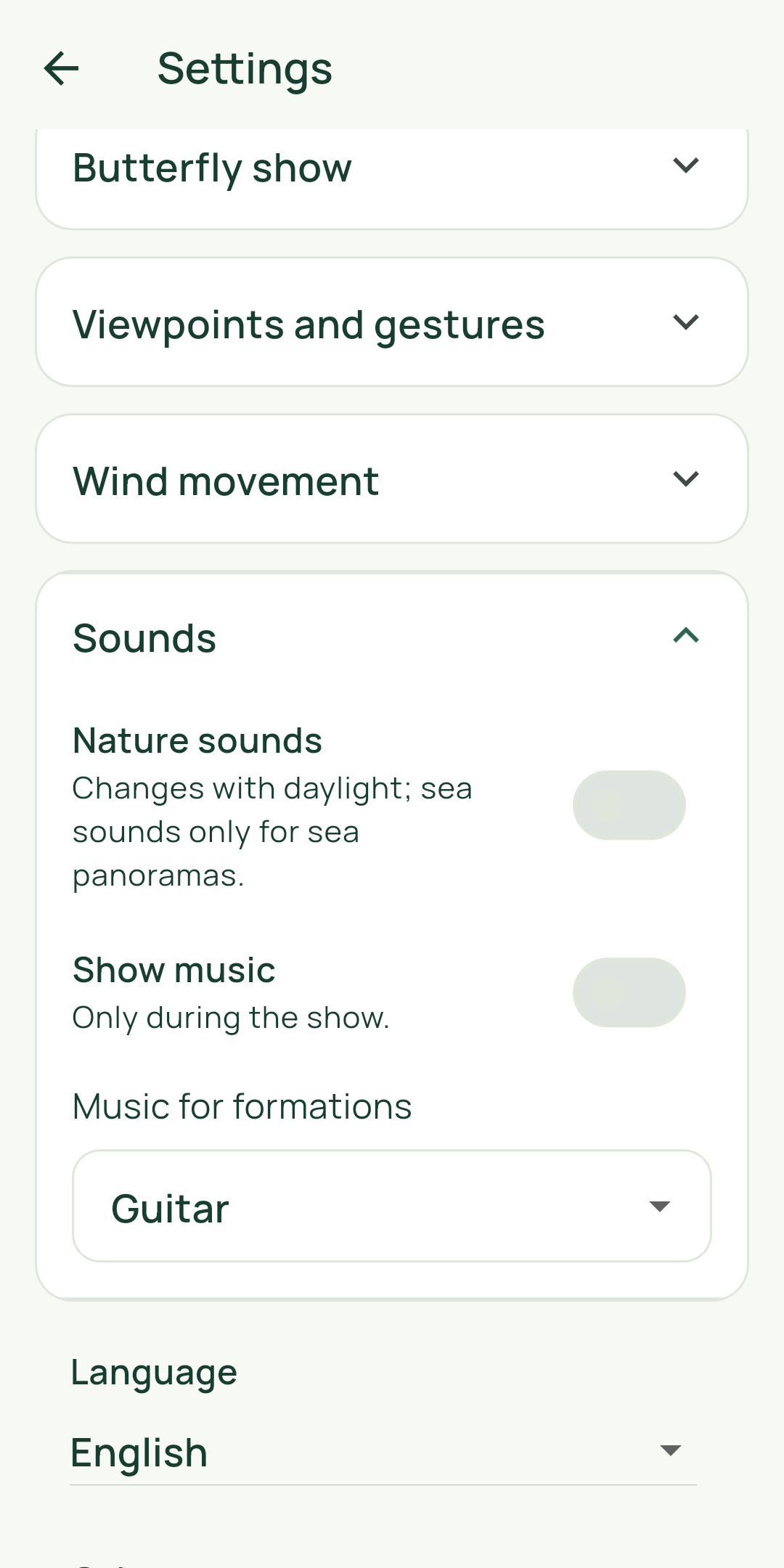
Make room for a quiet moment.
Nature sounds and show music, switched independently.
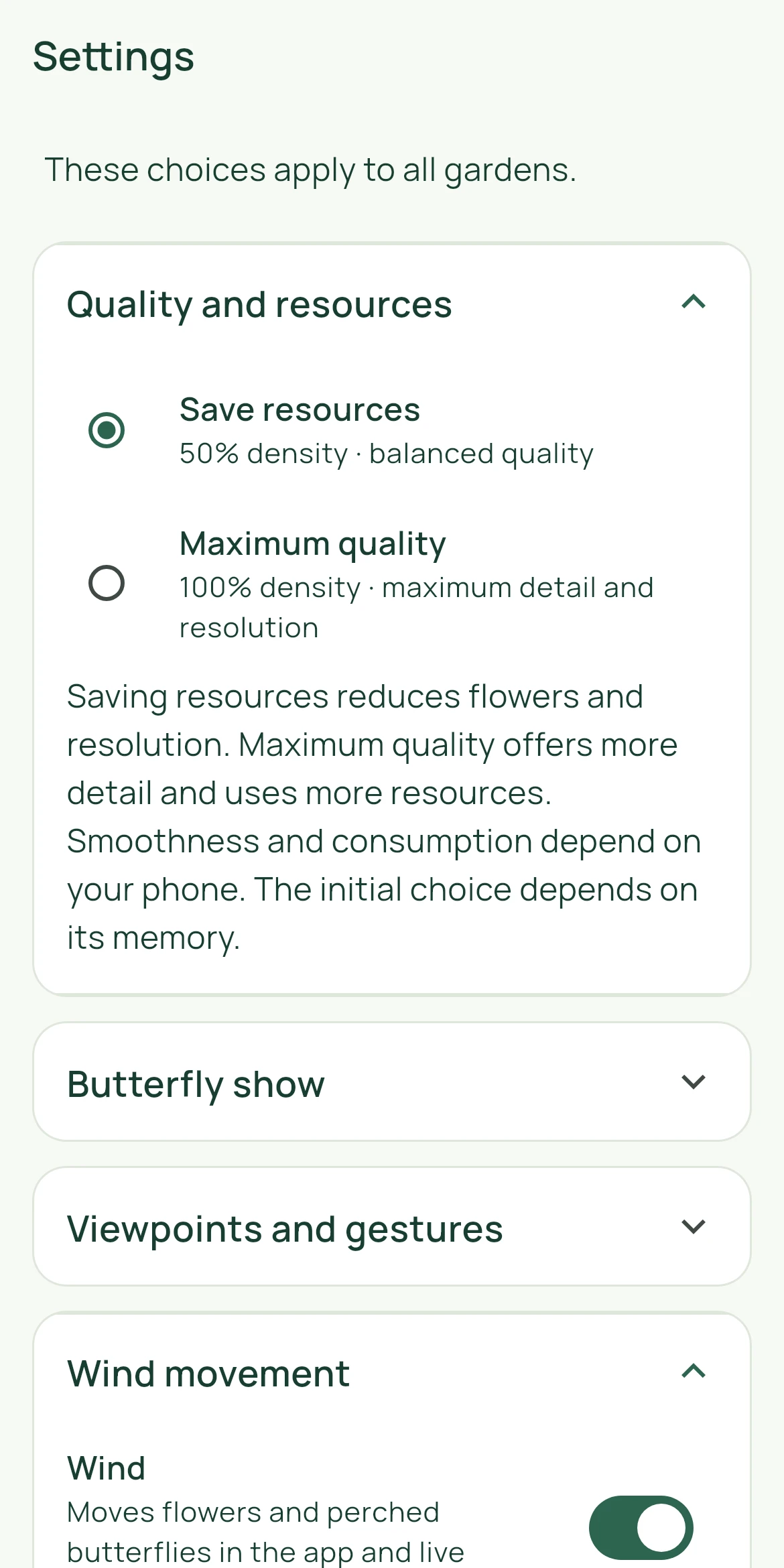
Find your balance.
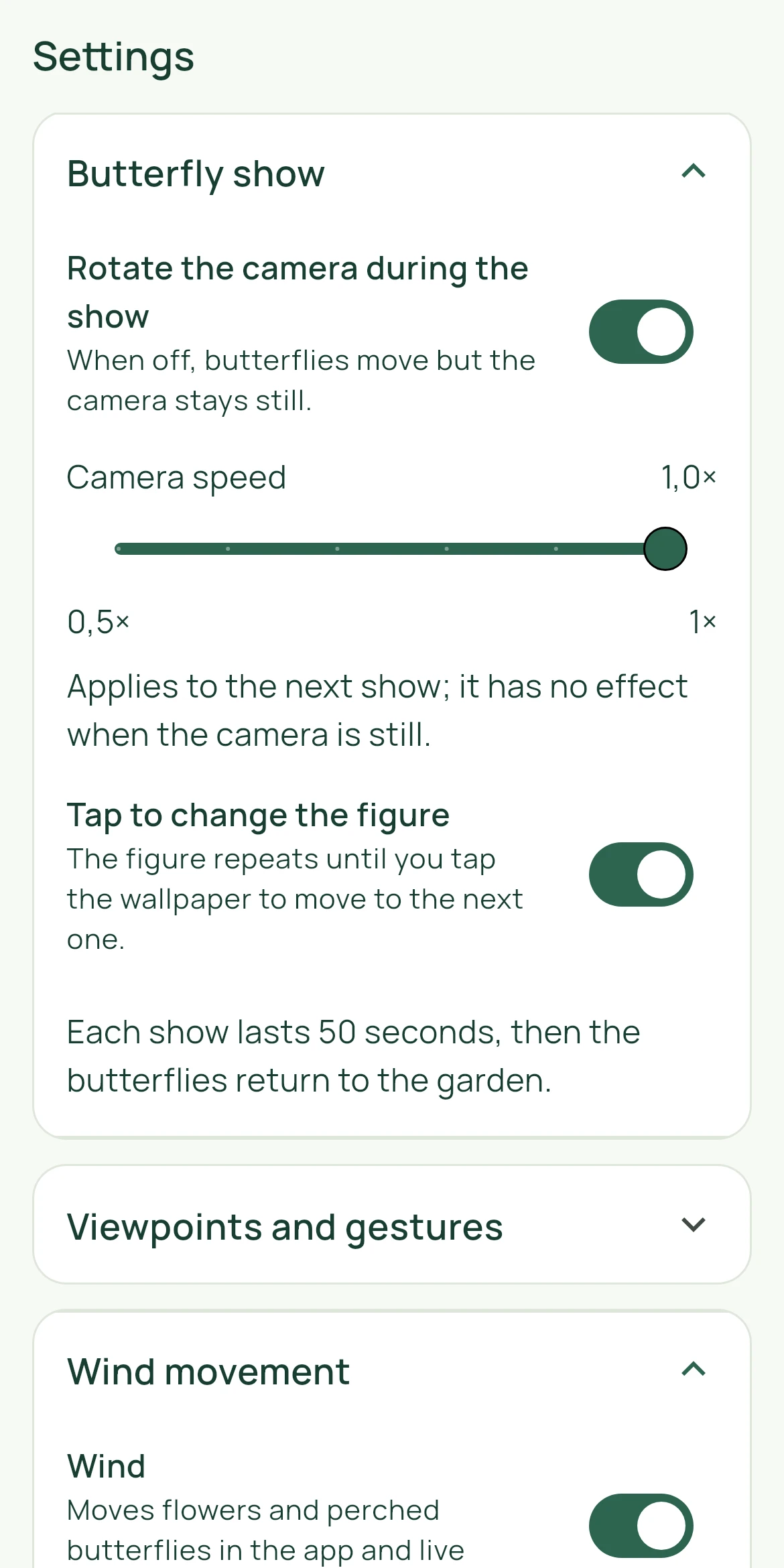
Adjust wind and camera rotation with separate controls. Choose Resource saving or Maximum quality and change the app language.
A look inside the app
Start exploring your garden
Choose a composition, preview it, then decide whether to create a garden of your own or apply the wallpaper through Android.
Choose a composition
Open Compositions to browse the 16 ready-made gardens. Select one to see its flowers, butterflies and scenery.
Preview or create
Use Preview to explore the scene. Choose Create garden to arrange a custom garden; add flowers and butterflies and save it with a name.
Apply with Android
When you are ready, choose Apply wallpaper and continue through Android’s preview and confirmation flow. The exact screens and options depend on your device.
Frequently asked questions
Does the app need an account or internet connection?
No. The current app runs locally and does not require an account or internet access. Gardens and settings are stored on the device.
How do I set the live wallpaper?
In the app, choose Apply wallpaper and continue through Android’s preview and confirmation screens. Android versions and device manufacturers may show different steps or options.
Where are my gardens saved? Can I duplicate one?
Saved gardens are kept in the app’s local storage. Choose Duplicate, enter a name, then save the separate copy. Android backup or transfer behavior follows your device and account settings.
What does automatic lighting do?
Automatic lighting follows the device’s local time to select the scene lighting. You can choose day, sunset or night manually instead.
Can I control nature sounds and show music separately?
Yes. Nature ambience and butterfly-show music have separate controls. Both are optional and can be turned off; the nature sound mode can also follow day/night lighting.
Which resource quality should I choose?
The lower resource setting reduces scene detail; the higher setting keeps more detail. Try either option and choose what looks and works best on your device. The app does not promise a particular frame rate or resource use.
How do I change the app language?
Open Settings and choose Language. The available list follows the languages included in the current app version.
Questions about Circus Butterfly?
For help or feedback, email the Circus Butterfly team. Please share only information needed to answer your message.
circus-butterfly@kinocus.com